AI search for Craft CMS that answers what your visitors mean
A Craft site is built around its entries, and visitors know what they want but not what you called it. Someone types "when are you open at the weekend" and your search finds nothing, because none of those words is in the title of your Opening hours entry. Asyntai's AI Search Bar reads the meaning and finds it. Install from the Plugin Store or with Composer, press one button to connect, and either let the bar take the place of the search form your templates already render, or print it where you want with a single Twig function.
See the AI search your Craft content
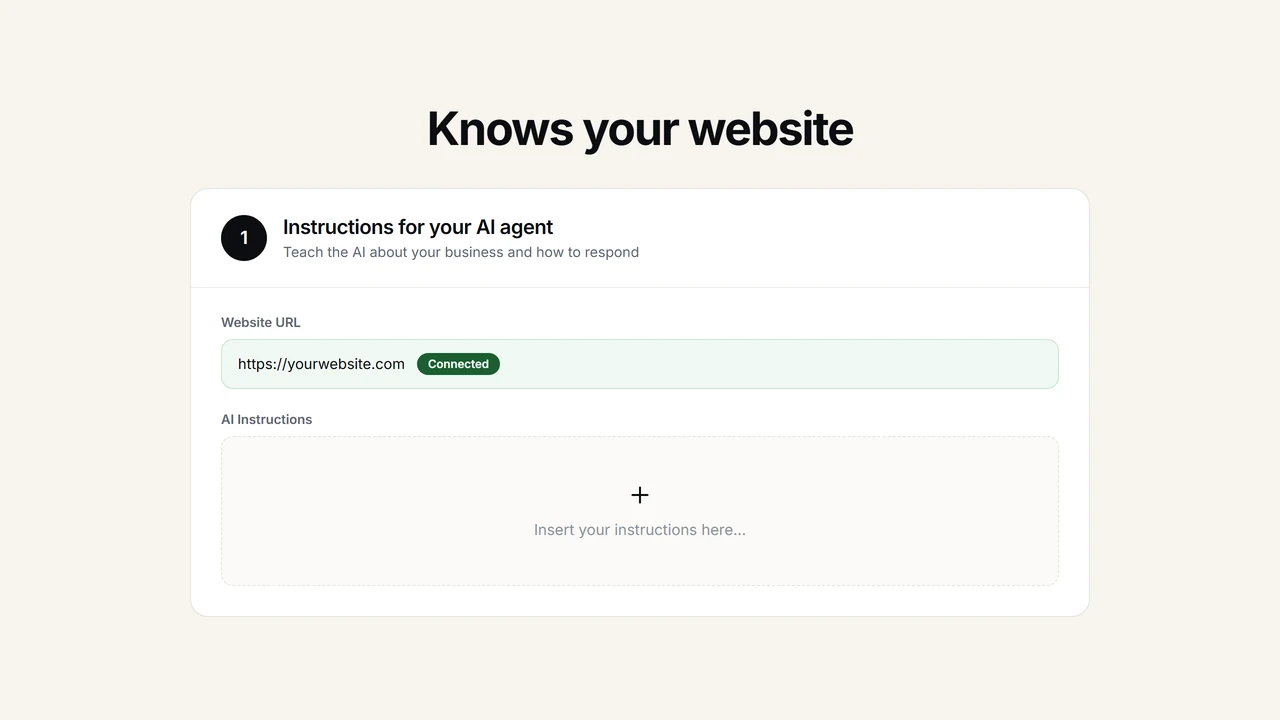
Enter your Craft site URL and watch the bar find real answers in your own entries
Visitors ask in their own words, and the bar finds the right entry
Craft's element search is a solid keyword engine, and every developer who has wired up craft.entries.search() knows its shape: it scores the words a visitor typed against the fields you chose to index. It works when the visitor already uses your vocabulary. It fails for everybody else, and on a site whose entry titles were written by a copywriter rather than an SEO tool, that is most visitors. They describe a situation. They ask "do you deliver to Ireland", not "international shipping zones". They ask "I want to see work you did for a museum", not "arts and culture case studies". The search finds no overlap and returns an empty results template. The Asyntai AI Search Bar reads the whole question, works out what the visitor is trying to do, and returns the entries that answer it.
- Meaning, not matchingA visitor asks "do you deliver to Ireland" and the bar returns your Shipping outside the UK entry, even though "Ireland" appears nowhere in its title. The words do not overlap. The meaning does. No amount of tuning the search index or adding keywords to a field will close that gap, because the gap is not about words.
- Results while the visitor typesResults appear under the bar as the question is typed, as a short ranked list with a title and a line of context. The visitor picks one and lands on the entry. Arrow keys move through the list, Enter opens the highlighted result. Nothing loads a separate results template and nothing sends the visitor away from where they were.
- We read your site ourselvesYou do not configure searchable fields, rebuild a search index or write a results template. We read your entries and pages from the front end, the way a visitor sees them, and keep reading as your client publishes. There is no index to reindex after a bulk edit and no queue job to watch.
Plugin Store or Composer, one Twig function, and project config handled properly
Install from the Plugin Store inside your control panel, or with composer require asyntai/craft-ai-search and php craft plugin/install asyntai-search. Open Asyntai AI Search in the sidebar and press Connect Asyntai. There is no API key to create and nothing to paste. Then choose where the bar goes: it takes the place of the search form your templates already render, or you print it yourself with {{ asyntaiSearchBar() }}. The four settings live in project config like every other plugin setting, and the connection deliberately does not, so nothing secret is ever committed or deployed.
- It takes the place of your search formChoose "In place of my search box" and the bar finds the search form your templates already render, hides it, and sits in exactly the same spot, so your own CSS keeps applying. If a visitor presses Enter without picking a result, your usual search page still opens, so the route they know still works.
- Or one Twig function, wherever you want itAdd
{{ asyntaiSearchBar() }}to a template. It prints a container the bar renders into, and it prints nothing at all while the bar is off, so your markup is left exactly as it was. Your own CSS styles the container, so the bar sits in the layout like anything else you put there. - Project config, and what deliberately stays out of itThe four settings are plugin settings, so Craft stores them in project config like everything else. On an environment with
allowAdminChangesoff, the plugin screen shows them read only: change them where project config is editable and deploy, as you would for any plugin. The connection itself lives in the plugin's own table, so connecting works per environment and no credential is ever committed.
Add AI search to your Craft site without touching a template
There is no API key to create and nothing to paste. Install the plugin, press one button to connect your account, and choose where the bar goes. We read your site and tell you on the plugin screen when the bar is live.
- In your control panel open the Plugin Store, search for Asyntai AI Search and press Install. Or run composer require asyntai/craft-ai-search then php craft plugin/install asyntai-search.
- Open Asyntai AI Search in the control panel sidebar.
- Press Connect Asyntai. A window opens where you sign in or create a free account. We then start reading your site.
- Set Where the bar goes. Pick "In place of my search box", or add the Twig function to a template and pick "Only where my templates put it".
composer require asyntai/craft-ai-search
php craft plugin/install asyntai-search
# Then, in any template:
{{ asyntaiSearchBar() }}
# Craft 4 or 5 · PHP 8.0.2 or later
See the bar answer a question
This is the AI Search Bar itself. Your visitors type a description, and the bar finds the entry.
Not one of these titles contains the words the visitor typed. That is the difference between matching words and reading meaning.
AI search for Craft CMS — FAQs
Common questions from Craft developers, agencies and the teams who look after Craft sites after launch.
How is this different from Craft's element search?
Element search scores the words a visitor typed against the fields you chose to index, and returns the entries that contain them. It is a good keyword engine. The Asyntai AI Search Bar works on meaning instead. It reads the whole question, works out what the visitor is trying to do, and returns the entries that answer it, even when the visitor's words and your titles do not overlap. A visitor asking "do you deliver to Ireland" finds your Shipping outside the UK entry. Element search returns nothing for that query, because "Ireland" is not in the title.
Do I have to remove my existing search?
No. The bar sits on top of what you already built. If a visitor presses Enter without picking one of the results, your usual search page opens exactly as before, running the same query and rendering the same template. Visitors who know how your search works keep that route. Visitors who describe what they want in a sentence get an answer instead of an empty results page.
Which Craft versions does it support?
Craft CMS 4.0 or later, and Craft CMS 5.0 or later, on PHP 8.0.2 or later. Your server also needs to be able to make outgoing HTTPS requests, because the plugin talks to us directly. Most hosts allow this, and the plugin screen says plainly if yours does not.
How do I put the bar in my templates?
Add {{ asyntaiSearchBar() }} wherever the bar should appear, and set Where the bar goes to "Only where my templates put it". The function prints a container the bar renders into, and it prints nothing at all while the bar is off, so your markup is left exactly as it was when the plugin is disconnected or out of allowance. Your own CSS styles the container.
What if my site has no search box?
That is common on a Craft site, because a Craft site has exactly the search box its developer wrote and plenty have none. In that case "In place of my search box" has nothing to replace, and the plugin screen says so rather than leaving you to guess. Use the Twig function instead and put the bar exactly where you want it.
How does it behave with project config?
The four settings are plugin settings, so Craft stores them in project config like every other setting. On an environment where allowAdminChanges is off, the plugin screen shows them read only. Change them where project config is editable and deploy, the same as for any plugin. The connection itself is deliberately not in project config: the plugin keeps it in its own database table, so connecting works per environment and nothing secret is ever committed or deployed.
What does the bar actually search?
Your entries and pages, as we read them from your site. If you run Craft Commerce, its product pages are read the same way, because they are pages on your site. You do not choose searchable fields, mark sections or rebuild an index. We read the site and keep reading it as your client publishes.
What plan do I need?
A site connected through this plugin runs the bar on any plan, including the free one. Your monthly reply allowance applies, and searches and chat replies share it. The plugin screen shows how much of the month is left. When the allowance runs out, the bar removes itself and your own search box comes straight back, so visitors keep being able to search. The plugin checks in the background and the bar returns by itself when the allowance resets.
Can I try it before the client's visitors do?
Yes. The plugin screen has a Try your search bar button. It opens your real search bar, on your real content, in a new tab. Searches you run there do not count against the monthly allowance, so you can check the results on the client's own entries before you switch anything on for visitors.
Why search is the loose end on a finished Craft build
Craft sites are usually well built. The content model is thought through, the templates are clean, the fields are named properly and the client has a control panel they can actually use. Then there is the search box. On most Craft builds it is the one feature that got a day of attention near the end of a project, wired up with craft.entries.search(), given a results template, and never looked at again.
That is not laziness, it is the shape of the tool. Element search is a keyword engine. It scores the words a visitor typed against the fields you chose to index, and it returns what contains them. To make it better you index more fields, add keywords, adjust weightings, or reach for a third-party search plugin and a hosted index. All of that is real work, and all of it is still matching words. It cannot help the visitor whose words are not your words.
And on a Craft site, the visitor's words are rarely your words, because Craft sites tend to be made for organisations with a voice. Entry titles are written by a copywriter. The delivery page is called "Getting it to you". The case studies are named after the client, not the sector. Every one of those is a better title than the searchable alternative, and every one of them is invisible to a word search when the visitor types "do you deliver to Ireland" or "have you worked with a museum".
The Asyntai AI Search Bar replaces the matching step with an understanding step. When a visitor types a question, the bar does not look for those words in your entries. It works out what the question means, then finds the entries that answer it. "Do you deliver to Ireland" and "Shipping outside the UK" share no words at all, and the bar connects them, because it is reasoning about the subject rather than comparing strings. Nobody has to rename an entry or stuff a keyword field.
What the visitor sees is deliberately ordinary. They type into a search box in the place your templates have always put one. Results appear underneath as they type, each with a title and a line of context, each a real link to a real entry. Arrow keys move through the list and Enter opens the highlighted result. There is no chat window, no modal to learn and no new component in the design system. The only thing that changed is that the box now finds things.
That is also why the plugin leaves your existing search in place. If a visitor ignores the results and presses Enter, your search page opens, runs the same query and renders the same template as before. Your search route, your results template and your pagination all still work. On a site you handed over two years ago, that matters: nothing you built has to be unpicked before the bar can be useful, and nothing can break in a way the client would notice.
Installation is the normal Craft route in both directions. From the Plugin Store inside the control panel, search for Asyntai AI Search and press Install. From the command line, composer require asyntai/craft-ai-search followed by php craft plugin/install asyntai-search. Then open the plugin in the sidebar and press Connect Asyntai. There is no API key to generate, no site ID to paste into a config file and no template to edit before anything works.
Placement acknowledges a fact about Craft that generic plugins get wrong: a Craft site has exactly the search box its developer wrote, and many have none at all. If yours renders a search form, the bar finds it, hides it and takes the same position, inheriting your CSS. If yours does not, the plugin screen says so plainly instead of silently doing nothing, and you add {{ asyntaiSearchBar() }} wherever the bar belongs. That function prints nothing at all while the bar is off, so a disconnected or out-of-allowance site renders exactly the markup it did before.
Project config is handled the way a Craft developer would want, which is to say the settings are in it and the credential is not. The four settings are plugin settings, so Craft stores them in project config like everything else, and on an environment with allowAdminChanges off the plugin screen shows them read only. You change them where project config is editable and deploy. The connection itself lives in the plugin's own database table, which means each environment connects independently and no secret is ever committed to a repository or pushed through a deployment.
What gets read is the front end of your site: entries and pages, the way a visitor sees them. There is nothing to configure about it, no searchable-field flags to set and no index to rebuild after a bulk edit, which is the maintenance task that quietly breaks search on long-lived sites. If the site runs Craft Commerce, its product pages are read the same way, because they are pages on the site.
Before the client's visitors see anything, the plugin screen has a Try your search bar button that opens the real bar, on the real content, in a new tab. Searches run there do not count against the monthly allowance. This is how to judge it honestly on a specific build: not on a demo, but on the client's own entries, with the five questions their support inbox actually receives. Type those five and look at what comes back.
The plan model suits agency work, where you want to show a client something before you ask them to pay for it. The bar runs on every plan, including the free one, so it can go on a staging site during a retainer conversation. Searches and chat replies draw on the same monthly reply allowance, the plugin screen shows what is left, and when the allowance runs out the bar removes itself and the site's own search box comes straight back. The bar returns by itself when the allowance resets, with nothing to reinstall.
The search box on a Craft site is one of the least examined parts of it. It was built once, it has always returned something, and nobody has checked what. The queries it fails leave no trace, because a visitor who finds nothing does not fill in the contact form to complain about the search: they fill it in to ask the question, and the client reads that as a lead rather than as a site that did not answer. Putting a bar in the same place that answers what people mean, rather than matching what they typed, is a small change to a finished build and a large change to what the site can tell the people already on it.