Best Plugin for HubSpot - AI Chatbot
The best AI customer support plugin for HubSpot websites. Add intelligent support to your HubSpot site with our powerful app. Answers visitor questions automatically 24/7. Works with all HubSpot plans. Start with 100 free messages.
See the HubSpot Plugin In Action
Powerful HubSpot plugin features that transform your site's visitor engagement
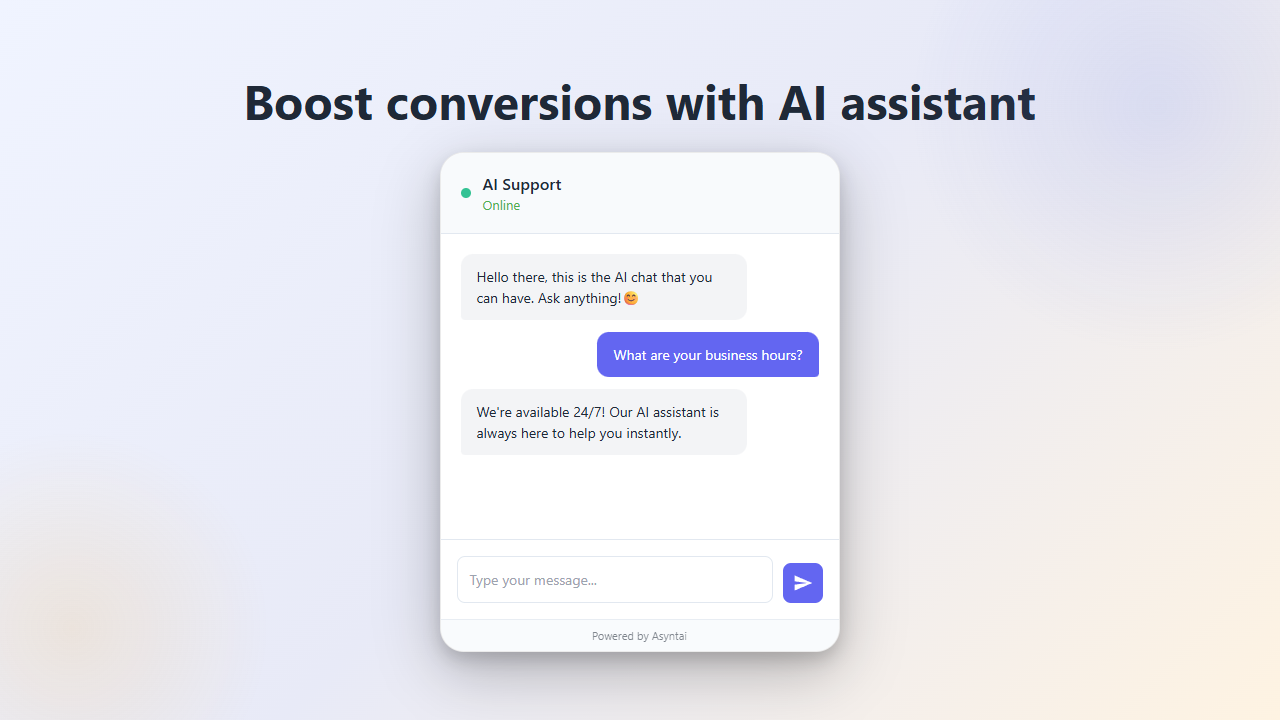
HubSpot Plugin Boosts Conversions
Our HubSpot plugin engages visitors instantly with intelligent responses to questions, product guidance, and purchase assistance, converting more browsers into customers.
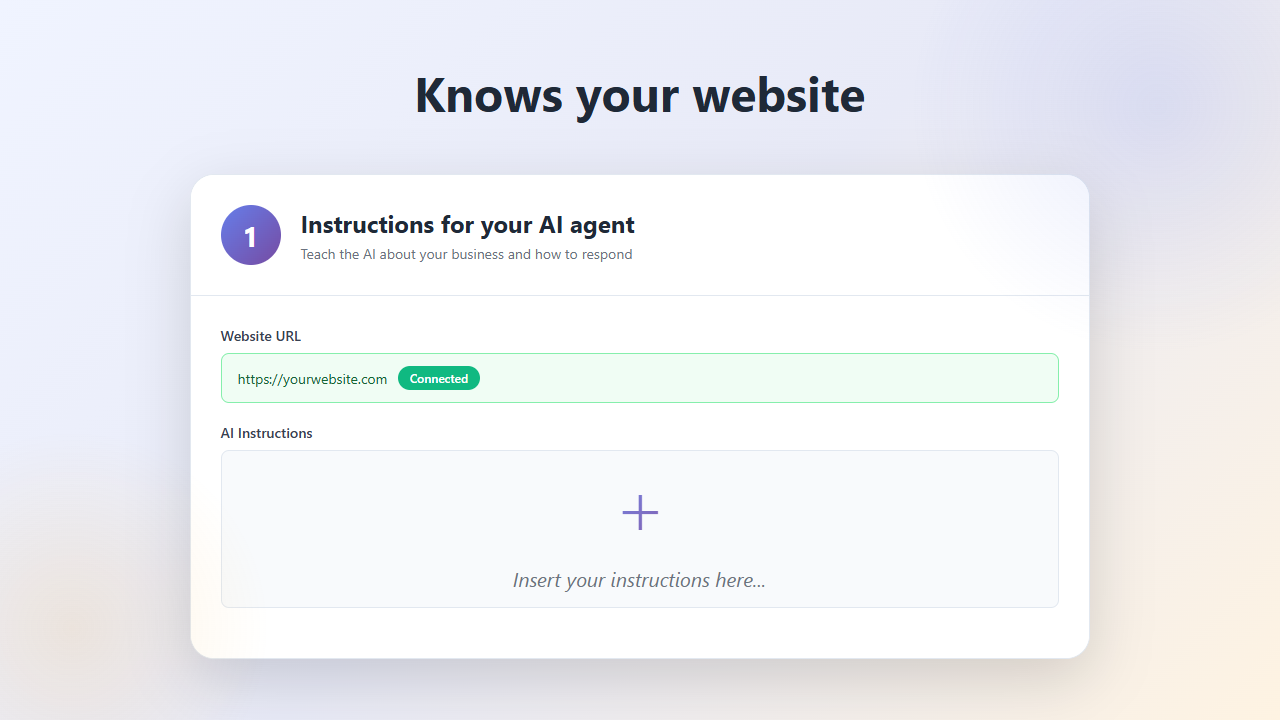
Smart Plugin Learns Your HubSpot Site
The plugin automatically learns from your HubSpot content, pages, and products to deliver accurate, contextual answers to every visitor inquiry.
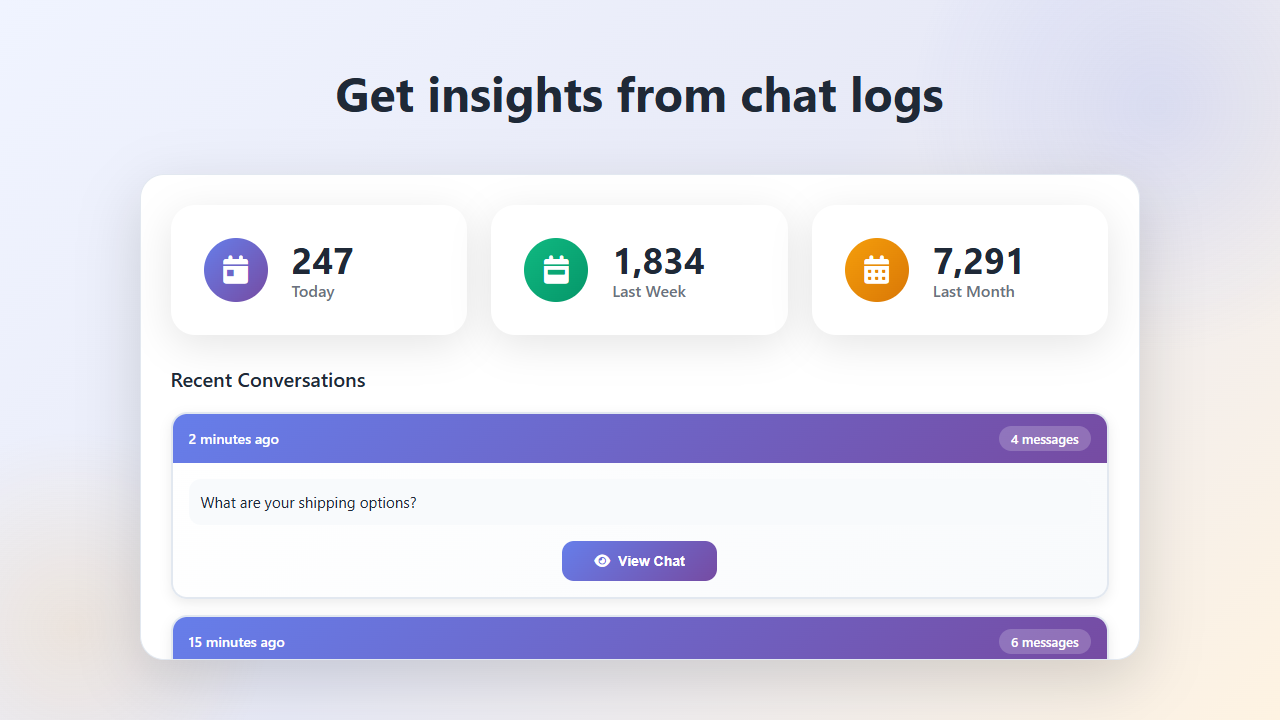
Plugin Analytics & Insights
Track every conversation through your plugin dashboard. Understand visitor needs, identify trending questions, and optimize your site based on real interactions.
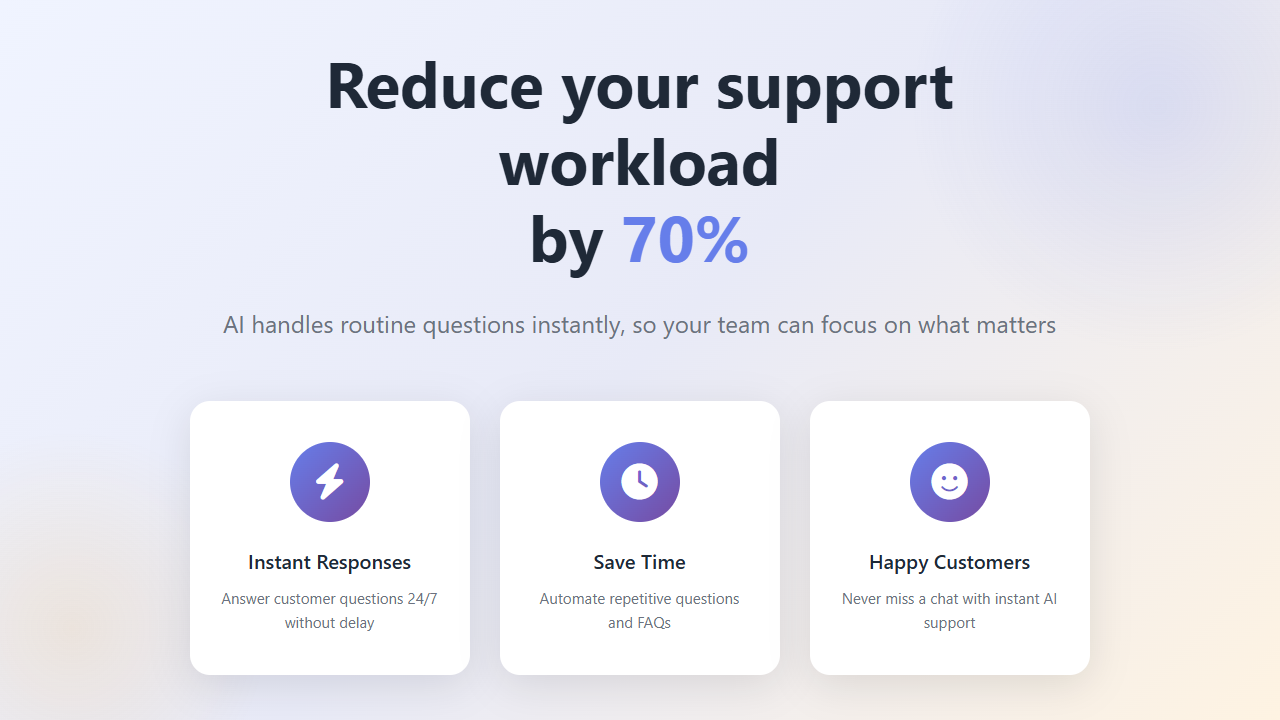
Automate Support with Plugin
Let the HubSpot plugin handle routine questions automatically while you focus on growing your business. Provides instant answers around the clock.
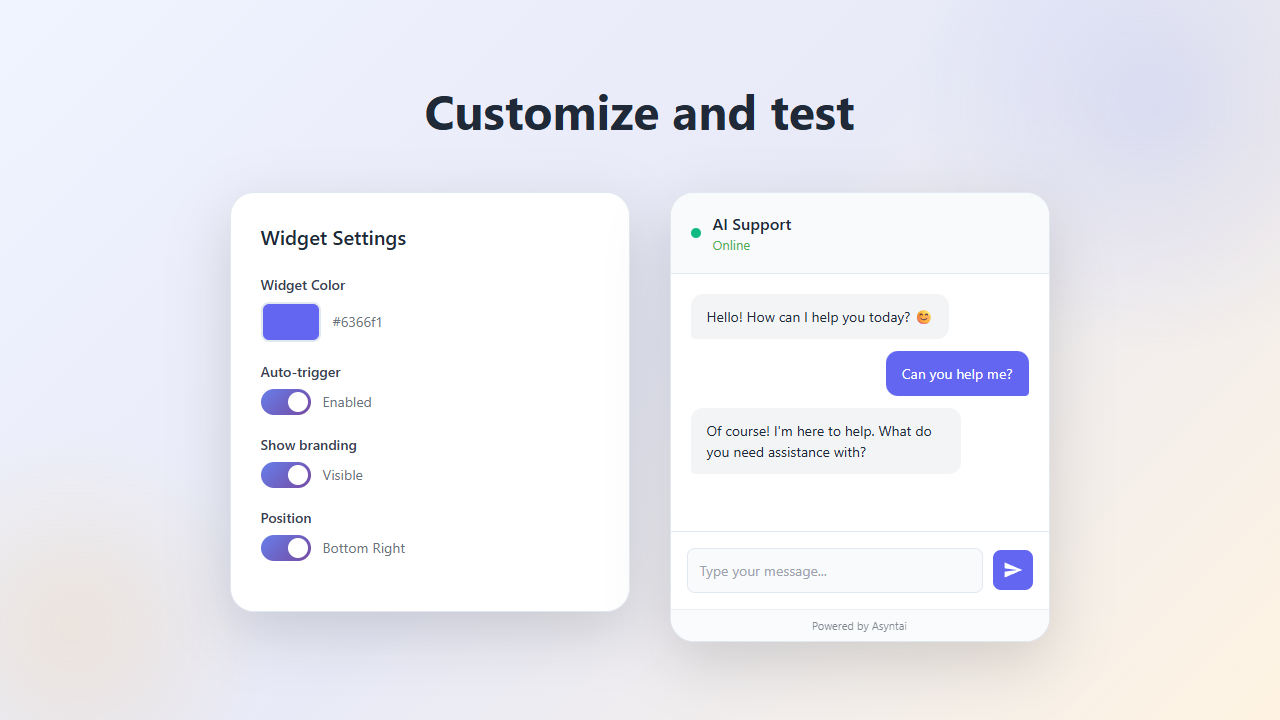
Customize Your HubSpot Plugin
Match your brand perfectly by customizing plugin colors, position, greeting messages, and behavior through our dashboard to complement your HubSpot design.
Watch HubSpot Plugin Setup
See how easy it is to add our AI customer support plugin to your HubSpot website. This quick guide covers the complete process from setup to configuration.
Why Choose Our HubSpot Plugin
The best AI customer support plugin for HubSpot with intelligent automation and exceptional visitor experiences
Easy HubSpot Integration
Add the plugin to your HubSpot website using HubSpot's HTML block feature. Works with all HubSpot plans including Free and Business instantly.
Always-On Plugin
The HubSpot plugin never sleeps. Provides instant responses to visitors any time of day or night, capturing every opportunity.
Multilingual HubSpot Plugin
The plugin automatically detects and responds in your visitor's language, expanding your HubSpot site's global reach effortlessly.
Smart Plugin Responses
Configure custom response guidelines and the plugin follows them precisely, maintaining your brand voice through every interaction on HubSpot.
Plugin Increases HubSpot Sales
The plugin's instant responses can boost conversion rates by up to 40%. Quick answers keep HubSpot visitors engaged and drive purchases.
Focused Plugin Behavior
The plugin stays on topic, ignoring unrelated questions and providing only relevant information about your HubSpot business.
How the HubSpot Plugin Works
Deploy your AI-powered plugin to HubSpot in three simple steps
Sign Up & Get Plugin Code
Create your account and access the plugin embed code. Customize the appearance to match your HubSpot website design.
Add Plugin to HubSpot Site
Copy the plugin code and add it to your HubSpot site using HubSpot's HTML block or site-wide code feature. Takes less than 2 minutes.
Plugin Goes Live on HubSpot
Your plugin activates immediately on your HubSpot site, handling visitor questions 24/7 while you focus on business growth.
Perfect HubSpot Plugin Integration
Our AI customer support plugin integrates seamlessly with HubSpot websites. Whether you're using HubSpot for landing pages, business sites, or online stores - the plugin works perfectly. Simple installation using HubSpot's HTML block with no complex configuration required.
- ✓ Plugin compatible with all HubSpot plans
- ✓ Lightweight plugin doesn't slow HubSpot sites
- ✓ Mobile-optimized plugin for HubSpot mobile view
- ✓ Update plugin settings without changing HubSpot code
Sign up free and get your HubSpot embed code instantly
Simple, Transparent Pricing
Start free and scale as you grow. No hidden fees, no long-term contracts.
- 100 messages per month Maximum number of messages the AI can send
- Up to 1 website Maximum number of websites under one account
- Up to 50 crawled pages Maximum pages you can crawl and add to knowledge base
-
Up to 5 items
Maximum number of items (PDFs, URLs, text, videos, etc.) you can add to your knowledge base per website.
Each crawl counts as 1 item no matter how many pages are included in the crawl. - 1 seat Number of team members who can access the dashboard
- —
- —
- —
- —
- —
- —
- —
- —
- —
- —
- —
- —
- —
- —
- —
- —
- —
- —
- —
- —
- —
- —
- —
- —
- —
- —
- —
- —
- —
- —
- —
- 2,500 messages per month Maximum number of messages the AI can send
- Up to 2 websites Maximum number of websites under one account
- Up to 250 crawled pages Maximum pages you can crawl and add to knowledge base
-
Up to 25 items
Maximum number of items (PDFs, URLs, text, videos, etc.) you can add to your knowledge base per website.
Each crawl counts as 1 item no matter how many pages are included in the crawl. - 2 seats Number of team members who can access the dashboard
-
Review chat logs
Access and review all conversations from your chatbot
- Smarter AI model You can enable a smarter AI model for better replies
-
Chat analytics
See analytics and insights from your chat conversations
- Localization Translate your widget to 32 languages
- Enable thinking You can enable thinking for more thoughtful AI responses
- Instagram, Messenger, WhatsApp, Zapier Connect your AI chatbot to Instagram DMs, Facebook Messenger, WhatsApp, and 6,000+ apps via Zapier
- REST API Build custom integrations with our REST API
-
Leads
Collect emails and phone numbers from visitors with optional input fields
- Custom notice Display disclaimers or consent notices above the chat input with markdown link support
- Standard support Standard email support with faster response times
- —
- —
- —
- —
- —
- —
- —
- —
- —
- —
- —
- —
- —
- —
- —
- —
- —
- —
- —
- —
- —
- 15,000 messages per month Maximum number of messages the AI can send
- Up to 3 websites Maximum number of websites under one account
- Up to 1,000 crawled pages Maximum pages you can crawl and add to knowledge base
-
Up to 100 items
Maximum number of items (PDFs, URLs, text, videos, etc.) you can add to your knowledge base per website.
Each crawl counts as 1 item no matter how many pages are included in the crawl. - 3 seats Number of team members who can access the dashboard
-
Review chat logs
Access and review all conversations from your chatbot
- Smarter AI model You can enable a smarter AI model for better replies
-
Chat analytics
See analytics and insights from your chat conversations
- Localization Translate your widget to 32 languages
- Enable thinking You can enable thinking for more thoughtful AI responses
- Instagram, Messenger, WhatsApp, Zapier Connect your AI chatbot to Instagram DMs, Facebook Messenger, WhatsApp, and 6,000+ apps via Zapier
- REST API Build custom integrations with our REST API
-
Leads
Collect emails and phone numbers from visitors with optional input fields
- Custom notice Display disclaimers or consent notices above the chat input with markdown link support
- Standard support Standard email support with faster response times
-
Real-Time Data Feed
AI can read real-time data (availability, status, products, etc.) during the conversation
- —
- Knowledge gaps AI analyzes conversations to identify where it lacked knowledge
- Daily report You can receive daily email summaries of your chat conversations
-
Add images
AI AssistantAdd images that the AI can display in chat conversations
-
Product cards
AI AssistantAdd product cards that the AI can show to customers during chat
-
User context
Pass user-specific information (order status, account status, renewal date, etc.) to the AI so it can use it during the conversation
-
Image vision
AI AssistantUsers can upload images in chat for troubleshooting, bug reports, or when they need visual help
- Speech to text Let visitors send voice messages that are automatically transcribed to text
-
Live monitoring
Watch all chat conversations in real-time as they happen on your website
-
Human takeover
Take control of any conversation and chat directly with visitors when needed
-
AI Notifications
Get email alerts when AI detects specific scenarios you define (bug reports, sales opportunities, etc.)
-
Escalation
Get notified when visitors request to speak with a human and join the chat directly
-
Bookings
Let visitors book appointments directly through the chat widget with calendar integration
-
Embeds
Embed external tools like Calendly, forms, or maps directly in chat responses
-
Support Tickets
AI can create support tickets during conversations for issues that need human follow-up
- Transcript download Allow visitors to download their chat conversation as a text file
- —
- —
- —
- —


- 50,000 messages per month Maximum number of messages the AI can send
- Up to 10 websites Maximum number of websites under one account
- Up to 5,000 crawled pages Maximum pages you can crawl and add to knowledge base
-
Up to 500 items
Maximum number of items (PDFs, URLs, text, videos, etc.) you can add to your knowledge base per website.
Each crawl counts as 1 item no matter how many pages are included in the crawl. - 5 seats Number of team members who can access the dashboard
-
Review chat logs
Access and review all conversations from your chatbot
- Smarter AI model You can enable a smarter AI model for better replies
-
Chat analytics
See analytics and insights from your chat conversations
- Localization Translate your widget to 32 languages
- Enable thinking You can enable thinking for more thoughtful AI responses
- Instagram, Messenger, WhatsApp, Zapier Connect your AI chatbot to Instagram DMs, Facebook Messenger, WhatsApp, and 6,000+ apps via Zapier
- REST API Build custom integrations with our REST API
-
Leads
Collect emails and phone numbers from visitors with optional input fields
- Custom notice Display disclaimers or consent notices above the chat input with markdown link support
- Priority support Priority email support with faster response times
-
Real-Time Data Feed
AI can read real-time data (availability, status, products, etc.) during the conversation
-
Real-Time Data Feed Max
Connect large product catalogs (up to ~25,000 items) using intelligent search with live data
- Knowledge gaps AI analyzes conversations to identify where it lacked knowledge
- Daily report You can receive daily email summaries of your chat conversations
-
Add images
AI AssistantAdd images that the AI can display in chat conversations
-
Product cards
AI AssistantAdd product cards that the AI can show to customers during chat
-
User context (higher limits)
Pass user-specific information (order status, account status, renewal date, etc.) to the AI so it can use it during the conversation
- Image vision Users can upload images in chat for troubleshooting, bug reports, or when they need visual help
- Speech to text Let visitors send voice messages that are automatically transcribed to text
-
Live monitoring
Watch all chat conversations in real-time as they happen on your website
-
Human takeover
Take control of any conversation and chat directly with visitors when needed
-
AI Notifications
Get email alerts when AI detects specific scenarios you define (bug reports, sales opportunities, etc.)
-
Escalation
Get notified when visitors request to speak with a human and join the chat directly
-
Bookings
Let visitors book appointments directly through the chat widget with calendar integration
-
Embeds
Embed external tools like Calendly, forms, or maps directly in chat responses
-
Support Tickets
AI can create support tickets during conversations for issues that need human follow-up
- Transcript download Allow visitors to download their chat conversation as a text file
-
Remove branding
Remove all Asyntai branding and make the chat widget fully yours
- SSO Single Sign-On authentication for your team using SAML or OAuth providers
- Reply suggestions Generate professional email replies using your AI knowledge base
- Translation Widget Let visitors translate your website into 40+ languages with AI-powered translations
Not sure which plan is right for you?
InteractivePlan Calculator
Why HubSpot Users Choose Our Plugin
Join thousands of HubSpot users using the best AI customer support plugin to transform their websites
Instant Plugin Responses
The plugin responds to HubSpot visitor questions in seconds, dramatically improving satisfaction and conversion rates.
Lower Support Costs
Automated plugin responses reduce support staff costs while delivering faster, more consistent customer service on HubSpot.
Higher Conversion Rates
The plugin answers product questions immediately, accelerating purchase decisions and reducing cart abandonment on HubSpot.
Frequently Asked Questions
Everything you need to know about the best AI customer support plugin for HubSpot
The Best Plugin for HubSpot Customer Engagement
Why HubSpot Websites Need This Plugin
Most HubSpot websites lack effective visitor engagement tools. Contact forms create friction. Email responses arrive too late. Phone support requires constant availability. The best plugins solve these problems through instant, automated communication designed specifically for HubSpot.
Traditional chat apps require human operators monitoring conversations continuously. This staffing requirement makes them expensive and limits availability to business hours. Modern AI-powered plugins eliminate these constraints completely through intelligent automation that works perfectly on HubSpot.
The impact shows immediately in metrics. HubSpot websites with chat plugins convert visitors at higher rates. Quick answers eliminate purchase hesitation. Instant support builds confidence. These improvements translate directly into increased revenue and customer satisfaction for HubSpot users.
How the Best HubSpot Plugins Work
Modern plugins use artificial intelligence to understand visitor questions and provide relevant answers automatically. The plugin learns from your HubSpot site content, products, and documentation to deliver accurate responses without human involvement.
Installation on HubSpot takes minutes through HubSpot's HTML block feature. After adding the code to your HubSpot site, you configure the appearance to match your design and train the plugin using your site content. The plugin then handles unlimited conversations simultaneously, providing instant responses around the clock.
Every conversation generates valuable insights. The plugin dashboard shows which HubSpot pages generate questions, what topics visitors ask about most, and when traffic peaks occur. Use this intelligence to improve both your plugin configuration and overall HubSpot site experience.
Plugin Features That Matter for HubSpot
The best plugins maintain compatibility with all HubSpot plans and features. Whether you use HubSpot for landing pages, business websites, or online stores, the plugin integrates seamlessly without conflicts or performance issues on your HubSpot site.
Mobile optimization is essential since most HubSpot traffic comes from phones and tablets. The plugin automatically adapts to different screen sizes, providing excellent experiences on every device without separate mobile configuration for your HubSpot site.
Customization options let you align the plugin with your HubSpot brand. Control colors, position, greeting messages, and behavior through simple settings. The plugin should feel like a natural part of your HubSpot site rather than an obvious addition.
Installing the Plugin on HubSpot
Setup begins with creating your account and accessing the integration code. Add this code snippet to your HubSpot site using an HTML block or the site-wide code feature in Site Settings. The plugin appears on your HubSpot site immediately after publishing.
Training the plugin requires pointing it to your HubSpot site content. The automated crawler reads your HubSpot pages and posts, absorbing information about your business, products, and services. Supplement with additional documents containing detailed specifications or policies.
Test the plugin thoroughly on your HubSpot site before relying on it completely. Ask various questions to verify accuracy. Check how it handles edge cases and unclear inquiries. Refine the training data based on these tests to improve response quality.
Maximizing Plugin Performance on HubSpot
Keep your plugin training current as your HubSpot site evolves. When launching new products, updating pricing, or changing policies on HubSpot, add this information to the plugin's knowledge base. Fresh data ensures HubSpot visitors always receive accurate, up-to-date responses.
Review conversation logs regularly to identify improvement opportunities. Notice questions the plugin struggles with and add clarifying information. This continuous refinement gradually enhances effectiveness and accuracy over time on your HubSpot site.
Monitor plugin analytics to understand HubSpot visitor behavior patterns. Track which pages generate the most questions, what topics interest visitors most, and when traffic peaks occur. Use these insights to optimize both plugin configuration and HubSpot site content.
Plugin Best Practices for HubSpot
Position matters for plugin visibility and effectiveness on HubSpot. Bottom-right placement works well for most HubSpot websites, maintaining visibility without blocking content. Test different positions to find what works best for your specific HubSpot layout and audience.
Welcome messages should invite engagement without being pushy. "Need help? I'm here to answer questions" works better than generic greetings. Make it clear the plugin provides real value rather than just being a decorative element on your HubSpot site.
Set appropriate response boundaries for your plugin. Configure it to focus on your business topics and politely decline off-topic questions. This keeps conversations productive and prevents HubSpot visitor confusion about the plugin's purpose and capabilities.
Ready to Install the Best HubSpot Plugin?
Start free with 100 messages and see how our AI-powered plugin transforms your HubSpot website engagement.