Webflow AI integration that connects through Site Settings
Asyntai integrates AI chat directly into your Webflow project via Custom Code — Head or Footer, your call. The AI reads every published page, CMS collection, and Ecommerce listing, then answers visitor questions around the clock in 36 languages. No Webflow Marketplace app involved; the integration lives entirely in the code fields Webflow already gives you.
Test the Webflow AI integration against your live pages
Paste any Webflow URL and see the AI answer from content it pulls off that exact domain
Connects to every layer of your Webflow project — static, CMS, and commerce
A shallow integration would only read the homepage and maybe the about page. The Asyntai Webflow AI integration walks the full published URL tree: static marketing sections, dynamically-rendered CMS templates for blog entries, portfolio items, team bios, job openings, product collection pages on Webflow Ecommerce stores, and any policy or legal URL linked from the footer. The resulting knowledge base is comprehensive enough that the AI rarely needs a fallback.
- Maps the full Webflow URL graphStatic routes, CMS-generated slugs, and Ecommerce product URLs are all discovered and indexed in a single pass that finishes within minutes of connecting.
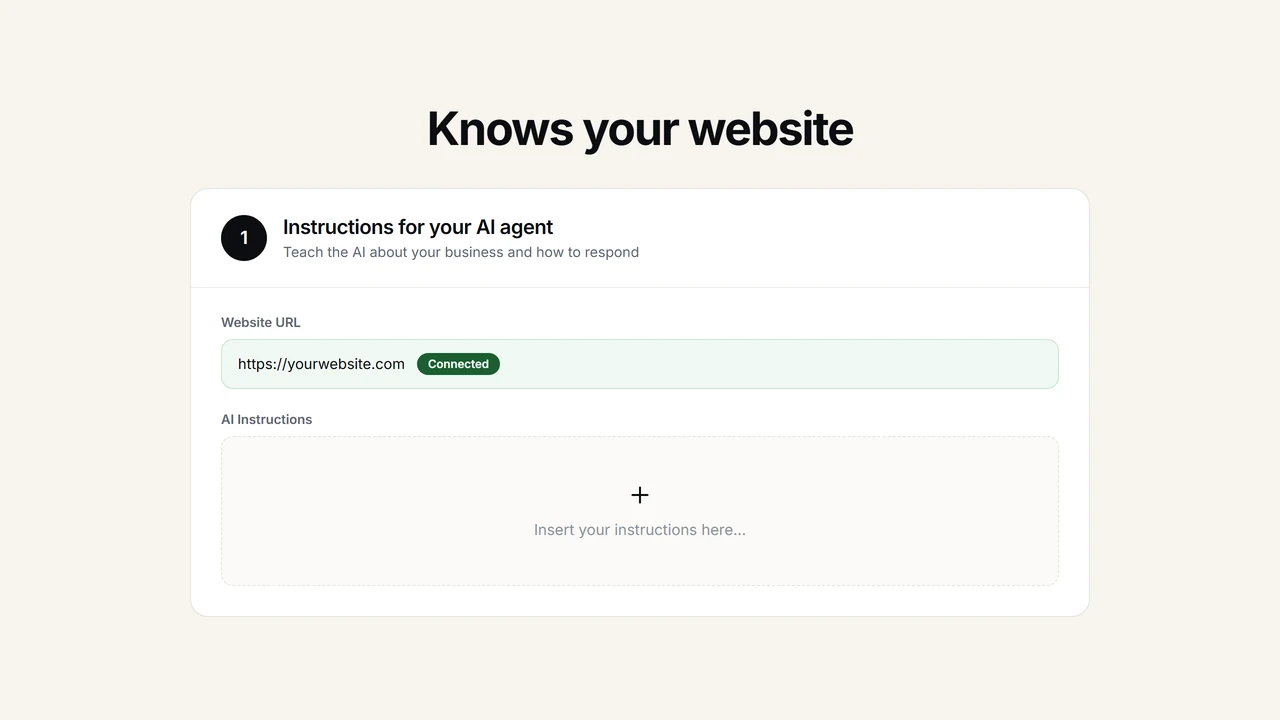
- Overlay private operational documentsRetainer scoping sheets, discovery-call frameworks, unpublished SOW language, and brand-voice playbooks upload as PDFs or raw text — the AI references them in conversation without exposing any of it publicly.
- Behavioral guardrails written in natural languageTell the AI how to act: "propose a discovery call whenever scope exceeds two pages," "never quote fixed rates on brand-identity work," "redirect talent inquiries to the careers page." Rules stick across every session.
Intercepts buying signals that a contact form would have missed
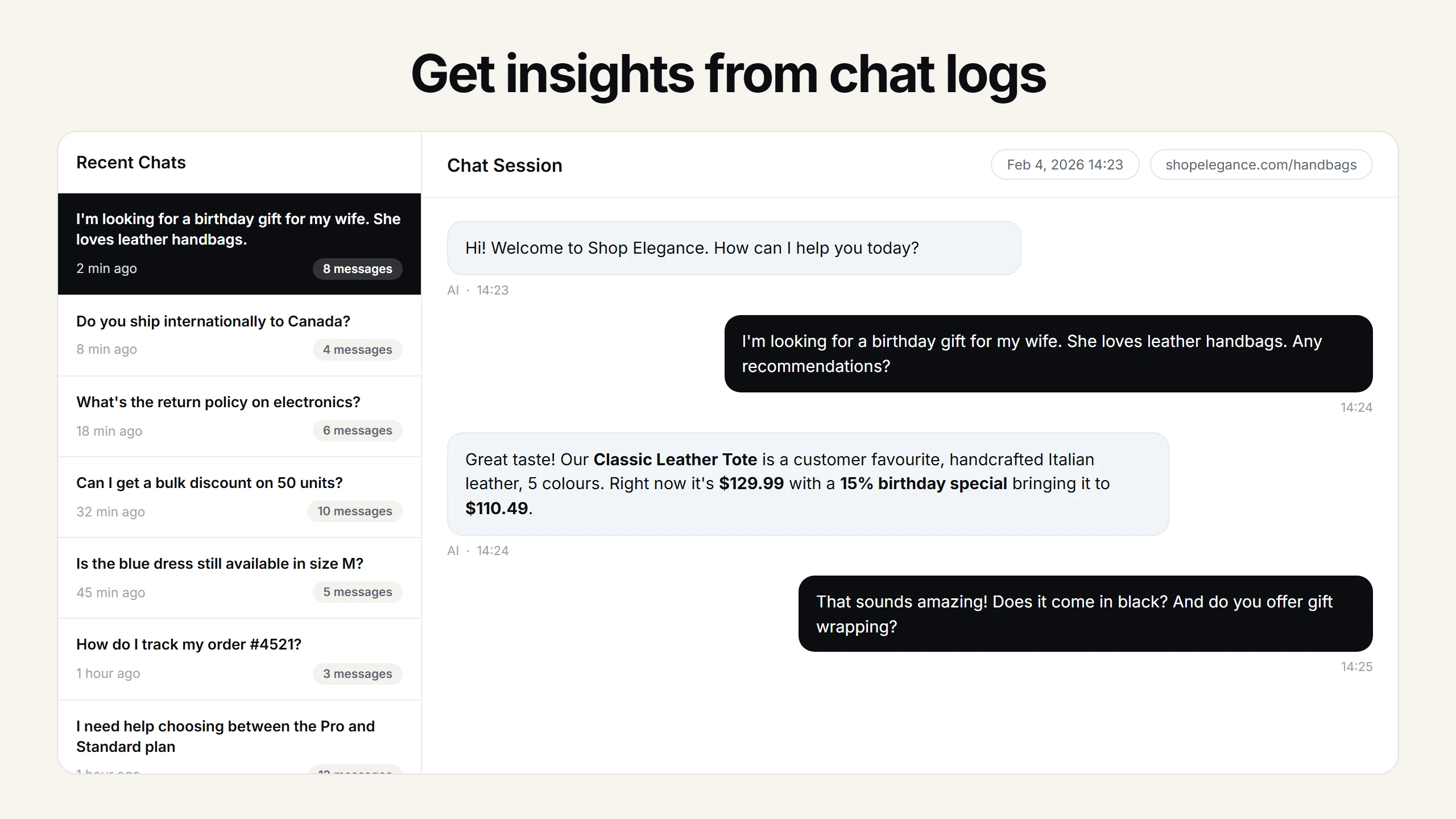
Webflow sites built by agencies, studios, and SaaS marketers regularly attract high-intent visitors who never fill in the contact form. The AI integration catches those visitors mid-session, addresses their exact hesitation, and collects a name and email at the natural conversational beat — so every lead arrives with the dialogue that qualified it.
- Full-transcript lead deliveryEach captured contact drops into your Asyntai dashboard with the entire conversation preserved — questions, objections, service interest, timeline clues — ready for a warm follow-up.
- Real-time inbox mirroringActivate email alerts and every fresh Webflow lead reaches your inbox the second the conversation closes, complete with the transcript and the captured email address.
- Session-aware via User ContextStandard and Pro tiers accept a window.Asyntai.userContext payload you control, so Memberstack or Outseta authenticated visitors receive replies that reference their tier, account age, or renewal date.
Integrates through Webflow Site Settings — Head or Footer Code
Webflow exposes two code fields inside Site Settings: Head Code and Footer Code. Both accept third-party scripts, and both propagate to every published page after you hit Publish. The Asyntai integration snippet works in either field — Head for earliest possible load, Footer to prioritize your hero assets. Global Custom Code availability starts at the Basic Webflow Site Plan tier. There is no Webflow Marketplace app to install.
- Create a free Asyntai account at asyntai.com and copy the integration snippet bound to your workspace.
- Inside the Webflow Designer, open your project's Site Settings and navigate to the Custom Code tab.
- Paste the snippet into Head Code (or Footer Code) and click Save Changes.
- Hit Publish from the Designer toolbar. The AI integration is now active on every published URL across your Webflow site.
<script src="https://asyntai.com/widget.js"
data-id="your-site-id" async>
</script>
# Destination: Site Settings → Custom Code
# Field: Head Code (or Footer Code)
# Then: Publish the Webflow site
Webflow AI integration — questions that come up before you paste
The technical and business questions Webflow teams typically settle before committing a Custom Code slot.
Why does this integrate through Custom Code instead of the Webflow Marketplace?
Using Custom Code means the integration never requests Webflow account permissions, never writes back to your project or CMS data, and never depends on the Marketplace app lifecycle for updates. The snippet is a standard async script tag — the same delivery mechanism Webflow recommends for GTM, analytics platforms, and third-party pixels. Removal is equally clean: delete four lines from the code field, save, and publish.
Which Webflow Site Plans support this integration?
Site-wide Custom Code is available on Basic, CMS, Business, and Enterprise Site Plans. The free Starter plan restricts it, so a production Webflow site on a custom domain will typically need at minimum the Basic tier. Per-page Custom Code is available regardless of plan, so limited installs on individual pages remain possible even on Starter.
Does the integration index password-protected or staging-only pages?
No. The crawler follows publicly accessible links from the root domain. Password-gated pages, draft CMS entries, and unpublished staging content are excluded by design. If you need the AI to reference private material, upload those documents directly through the Asyntai dashboard rather than relying on the crawl.
Can I restrict the AI integration to specific Webflow pages?
Yes. Instead of using the site-wide Custom Code fields, paste the Asyntai snippet into the per-page Custom Code section on only the pages where you want the AI present. Useful when chat makes sense on service pages and case studies but not on a minimal brand homepage or a password-reset template.
How quickly does the AI reflect content changes I make in the Webflow Designer?
After you publish updated content, trigger a re-crawl from the Asyntai dashboard and the new material enters the knowledge base within minutes. Removed pages drop out of the index on the same pass. You do not need to re-paste the snippet or change anything in Custom Code for content updates.
Does the integration coexist with other Custom Code scripts?
Yes. The snippet is a self-contained async tag that does not modify the global scope beyond its own widget namespace. It runs alongside GTM containers, Hotjar, Segment, Memberstack initializers, analytics pixels, and any other third-party scripts you already have in Head or Footer Code without order-of-load conflicts.
What happens with Webflow Ecommerce product data?
Product pages, category listings, and any published checkout-adjacent content are crawled as regular URLs. The AI can quote descriptions, variant names, and policy language from whatever is published. It does not interact with the Webflow Ecommerce API, does not modify inventory, and does not touch the cart or checkout flow.
What are the Asyntai plan limits relevant to a Webflow integration?
Free tier: 100 messages per month on 1 site. Starter: 2,500 messages on up to 2 sites at $39/month. Standard: 3 sites with User Context. Pro: up to 20 sites. Each connected Webflow project maintains a separate knowledge base, which matters when agencies run the integration across client projects that share nothing content-wise.
How the Webflow AI integration connects — and what changes once it does
Integration is a word that carries more weight in the Webflow ecosystem than it does on most platforms. Webflow does not have a conventional plugin architecture. There is no wp-content directory to drop files into, no app store where you install an extension and grant it database access, no server-side hook system where third-party code injects itself into page rendering. What Webflow offers instead is a well-defined surface for external scripts: the Custom Code fields in Site Settings. Every third-party tool that wants to be present on a Webflow site — analytics, consent management, retargeting pixels, tag containers, and now AI chat — arrives through those same text areas. The Asyntai Webflow AI integration is designed to land squarely in that surface, behave like a responsible tenant, and deliver value without pretending to be something deeper than what Webflow's architecture allows.
That architectural honesty is worth pausing on, because a lot of tools that claim "Webflow integration" stretch the term. They might require you to embed an iframe inside a Webflow component, or ask you to link a Zapier bridge between your CMS and their service, or insist on a Marketplace app that requests workspace permissions just to render a widget. The Asyntai approach is simpler and deliberately constrained. You paste an async script tag into Head Code or Footer Code under Site Settings, you publish, and the AI loads on every published URL without touching your Webflow project files, your CMS data, or your hosting configuration. The snippet never writes back to Webflow or phones home through your account credentials — it exists purely as a client-side layer that reads what visitors already see and adds a conversational interface on top.
The first thing the integration does after you connect your Webflow URL in the Asyntai dashboard is crawl the published site. This is where the AI stops being generic and starts being useful for your specific Webflow project. The crawler follows every internal link it finds, which on a typical Webflow site means it discovers the homepage, the about page, the services or solutions section, the pricing page, the blog index and every individual blog post rendered from your CMS template, any portfolio or case-study collection, team member pages, FAQ content, contact information, and whatever policy or legal pages are linked from the footer. For Webflow Ecommerce stores, product pages and category listings join the same index. The result is a knowledge base that mirrors the full public footprint of your Webflow project — not a single-page summary, not a homepage-only skim, but the complete published output.
Private material fills in what the public crawl cannot reach. Every Webflow site has institutional knowledge that never makes it to a published page — internal rate cards, discovery-call scripts that shape how the team qualifies prospects, retainer-scope language from past proposals, onboarding checklists that new clients never see publicly, brand-voice guidelines that inform how copy is written but aren't themselves published. You upload those as PDFs or paste them as plain text directly into the Asyntai knowledge base. The AI treats them identically to the crawled pages: as source material it references when a conversation calls for it, without ever exposing the documents to your Webflow visitors. That blend of crawled pages and uploaded materials is what gives the AI the depth of a colleague who has been through the company onboarding, not a cold reader who scanned the marketing copy once.
Behavioral rules are the third input that shapes how the AI operates within your Webflow integration. These are plain-English instructions you write once and apply across all conversations. "When a visitor asks about project timelines, always check whether they have a fixed launch date before suggesting a scope." "Route any question about annual retainers to the contact form on the retainers page." "If someone mentions a competitor by name, acknowledge it neutrally and pivot to our differentiators on the comparison page." "Always use first-person plural." The AI applies these rules consistently regardless of visitor language, session length, or question complexity. For agencies managing Webflow sites on behalf of clients, these rules are effectively a lightweight brand-voice layer that keeps the AI aligned with the client's positioning without requiring the agency to micromanage every conversation.
The integration surface itself — Head Code versus Footer Code — is a choice worth making intentionally rather than defaulting. Head Code means the AI script begins downloading before the page body renders. The async attribute ensures it does not block rendering, but the download starts early. Footer Code means the script begins downloading after the body has parsed, which puts hero images, Lottie animations, and above-the-fold content further ahead in the priority queue. For design-heavy Webflow sites where the initial visual impact matters — studios, fashion labels, real estate showcase sites — Footer Code is usually the better slot. For content-driven sites where the chat is a core conversion tool — lead-gen landing pages, SaaS marketing microsites, services pages — Head Code gets the widget ready fractionally sooner. The absolute difference is small, but having the option matters to teams who care about render priority.
Per-page versus site-wide integration is another axis of control. Webflow offers Custom Code at two levels: the site-wide fields in Site Settings (which propagate to every published URL), and per-page code fields accessible from the page settings panel in the Designer. You can run the Asyntai snippet site-wide for blanket coverage, or restrict it to specific pages by pasting it only in those page settings. Agencies often start with a handful of high-traffic pages — the services landing page, one or two flagship case studies, the pricing page — to validate the integration before rolling it out project-wide. Solo operators running a single portfolio usually paste site-wide from day one because every page is a conversion surface and full coverage costs nothing at the free-tier message volume.
Language handling is woven into the integration rather than layered on top. The AI widget ships with interface strings localized across 36 languages, and the model picks up on the written language of the opening message and responds in kind. A Munich-based prospect who writes in German sees German throughout the widget and the conversation. A Sao Paulo visitor typing Portuguese gets Portuguese. The underlying model translates between your English Webflow content and the visitor's native tongue at inference time — no Webflow Localization project, no per-locale snippet, no third-party translation service in the middle. For Webflow projects that pull organic traffic across borders (common, given that the platform outputs fast, crawlable markup that ranks broadly), this single-snippet multilingual behavior fills a gap most site owners never even track.
Lead capture through the AI integration works differently from a traditional Webflow form block. A form block on a Webflow page is a deliberate action the visitor has to seek out, navigate to, and complete with structured fields — many visitors with genuine questions never reach it. The AI captures contact details mid-conversation, at the moment when the visitor's engagement is highest and their objections have already been addressed. The captured lead includes the full transcript — every question they asked, every answer the AI provided, every signal about their intent. That transcript context transforms follow-up from cold outreach to warm continuation. Leads land in the Asyntai dashboard and, with email notifications enabled, directly in the inbox of whoever handles sales or client relationships for the Webflow project.
User Context integration is the mechanism for Webflow projects that handle authenticated visitors. Memberstack-powered membership sites, SaaS applications using Webflow for their marketing shell, and gated community platforms all have visitors who are logged in when they encounter the AI. On Standard and Pro plans, you populate a window.Asyntai.userContext object in your own Webflow Custom Code before the widget initializes. That object can carry name, email, plan tier, account creation date, renewal status, or any custom attribute your membership layer already knows. The AI weaves this context into its replies: a paid member asking about an upgrade sees a reply that references their current tier; a trial user asking about features sees a reply scoped to what the trial includes. Asyntai reads only what your code passes; nothing is pulled from Webflow or the membership provider without your involvement.
Conversation analytics close the feedback loop. Every AI dialogue on your Webflow site is logged, timestamped, and clustered by topic and language in the Asyntai dashboard. Within weeks, patterns emerge that no analytics tool would surface on its own — repeated pricing questions flag a page gap, geographic inquiries reveal missing geographic statements on the homepage, and unexpectedly active CMS posts identify conversion assets you did not know you had. These patterns come from actual visitor phrasing, not pageview proxies, which makes them far more actionable for Webflow teams iterating on copy weekly.
Multi-site management mirrors how agencies actually run Webflow books of work. Free covers one project. Starter handles two at $39 per month with 800 messages. Standard extends to three with User Context. Pro scales to ten independently trained integrations. Each project keeps its own isolated knowledge base, preventing content crossover between unrelated clients. Warning emails arrive before the monthly message ceiling so a traffic spike on one project does not silently disable the integration across the rest.
The path to a working Webflow AI integration fits inside a single working session. Register a free Asyntai account, copy the snippet, open the Webflow Designer, navigate to Site Settings, paste the snippet into Head or Footer Code, save, publish. Return to Asyntai, submit the Webflow project URL so the crawler indexes every published page. Upload any private documents you want the AI to reference. Draft a handful of tone and escalation rules in everyday language. Adjust the widget color, position, and greeting to match the Webflow project's design language. Run a handful of test conversations from the live URL to confirm voice and accuracy. Switch on lead capture notifications. The whole sequence is complete before lunch, and from that point forward the Webflow AI integration is handling visitor questions, converting hesitant browsers into qualified leads, and generating the kind of conversation data that makes every future edit to the Webflow project more informed than the last.