AI LMS integration: add a chatbot to your learning platform with one line of code
No LMS plugin to build, no API credentials to configure. Paste a JavaScript snippet into your Moodle, Canvas, Blackboard, or TalentLMS theme — the chatbot reads your course pages and starts answering student questions immediately.
Test the integration on your own LMS
Paste your LMS URL below. The AI reads your published course pages, policies, and help content — then answers questions the way your support staff would. See the results before you install anything.
LMS chatbot projects usually stall in IT procurement — this one ships in an afternoon
Most institutions that want an AI chatbot on their LMS start by searching for a platform-specific plugin. They find a handful of options, each tied to one LMS vendor, each requiring administrator access to install, each introducing a new dependency that might break on the next platform update. The IT department evaluates the plugin, reviews its permissions, tests it in a staging environment, negotiates with the vendor, and six months later the project is either live or shelved. This is the traditional integration path, and it kills most chatbot initiatives before students ever see them. The alternative is simpler than most administrators expect. Instead of building or buying an LMS-specific plugin, you paste a single JavaScript snippet into your LMS theme template. The script loads a chat widget that floats on every page. The AI reads your existing course content — syllabi, assignment descriptions, policies, help pages — by crawling the publicly accessible URLs, and uses that content to answer student questions. There is no plugin to install, no LMS marketplace submission to wait for, no platform-specific code to maintain. The same embed script works on Moodle, Canvas, Blackboard, TalentLMS, and any other platform that allows custom HTML or JavaScript. When your LMS updates, nothing breaks, because the chatbot is not coupled to the LMS software — it runs independently in the browser.
- One script tag, every LMS platformThe same three-line embed code works on Moodle 3.x and 4.x, Canvas, Blackboard Learn and Ultra, TalentLMS, Teachable, Thinkific, and any custom-built platform. You paste it into your theme footer or an HTML block, and the chatbot appears. There is no plugin architecture to learn, no app store to navigate, and no vendor lock-in to a specific LMS.
- Content crawling replaces API configurationTraditional LMS integrations require API keys, OAuth configurations, and scope permissions. The Asyntai chatbot skips all of that by reading your course pages the way a student would — through the URLs. It crawls up to 50 pages of your LMS content and uses that to answer questions. No API credentials, no webhook setup, no IT ticketing for access tokens.
- Updates happen without redeploymentWhen an instructor updates the syllabus or posts new assignment details, re-crawl from your dashboard and the chatbot picks up the changes. There is no database synchronization, no webhook listener to build, and no integration that fails silently when the LMS schema changes. The content stays in your LMS where it belongs — the chatbot reads it fresh whenever you trigger a crawl.
Start with content-based answers, then connect your back-end systems on your own schedule
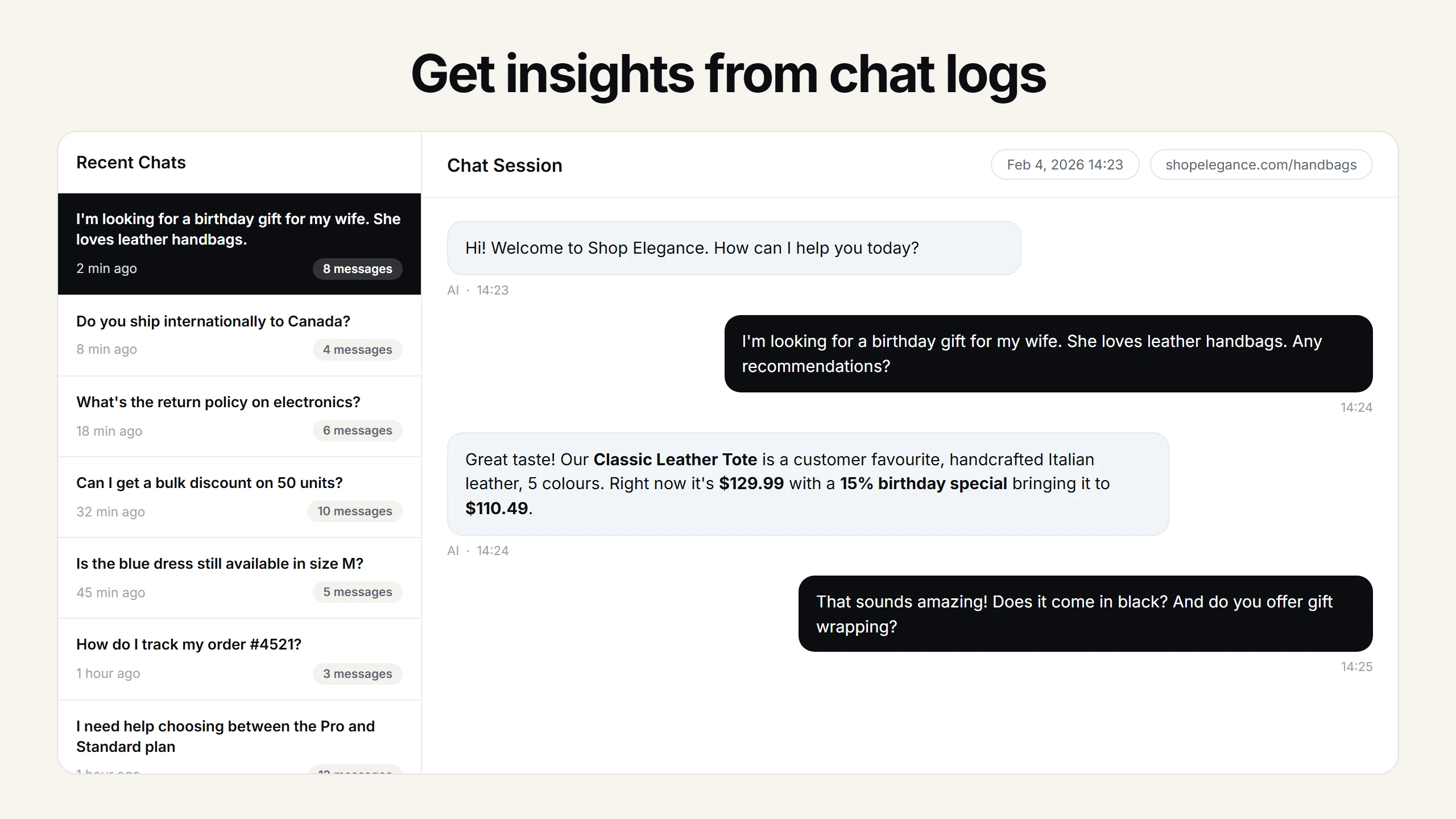
The JavaScript embed gives you a working chatbot immediately — students ask questions, the AI answers from your course content. But when you are ready for more, Custom Tools on Standard ($139/month) and Pro ($449/month) plans let the chatbot call your institutional APIs during a conversation. Enrollment checks, grade lookups, library holds, financial aid status — any system with a REST API can become a data source the chatbot queries in real time.
- No-code API connections through your dashboardCustom Tools are configured through a form, not through code. You specify the REST endpoint URL, define the parameters the AI should extract from the conversation (student ID, course code, semester), and describe when the tool should be used. The AI handles the rest — calling the API, parsing the response, and delivering the answer naturally in the conversation.
- Enrollment and registration lookupsConnect your student information system and the chatbot answers "am I enrolled in CHEM 201 for spring?" by querying the actual registration database. During add/drop period, this eliminates hundreds of calls to the registrar from students who just need to confirm their schedule.
- Gradebook queries without instructor interventionIf your LMS or SIS exposes grade data through an API, the chatbot can tell a student their current standing: "You have 87% in this course. Your last three assignments scored 92, 78, and 90. The final exam is worth 30% of your grade." Instructors stop fielding "what is my grade right now?" emails.
- Campus service integrationsLibrary availability, IT ticket status, room booking, dining hall hours — any campus system with a REST API can feed the chatbot. A student asking "is the engineering library open right now?" gets a live answer instead of a link to a separate website with separate login credentials.
How to integrate the AI chatbot with your LMS
Four steps, no IT project, no plugin development. An instructor can do this for a single course page, or an administrator can deploy it institution-wide — same process either way.
- Pick a plan at asyntai.com/pricing — the Free tier gives you 1 site and 50 messages to validate the integration with real student traffic before committing any budget.
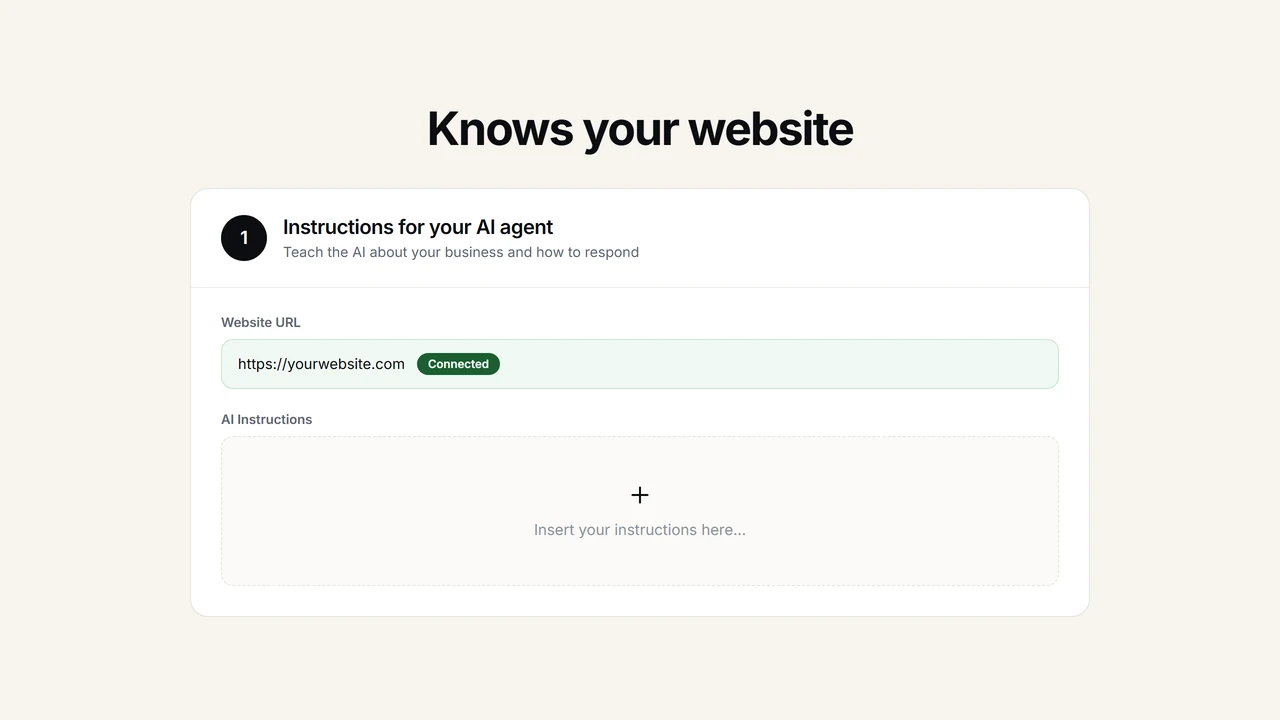
- Add your LMS URL in the Asyntai dashboard. The AI crawls up to 50 pages of your learning platform — course modules, syllabus documents, policy pages, help articles — and builds its knowledge base from the existing content. No API keys or data export needed.
- Customize appearance and behavior. Match your institution's branding (colors, logo, name), write any custom instructions ("redirect mental health questions to the counseling center"), and upload supplementary documents — student handbooks, orientation guides — to expand coverage beyond what the crawled pages include.
- Paste the embed script into your LMS. On Moodle: add it to an HTML block or the theme footer via Site Administration. On Canvas: add it through the theme editor or a custom JavaScript file. On Blackboard: insert it through the system page header. On TalentLMS: add custom JavaScript in account settings. One script, every platform — the chatbot goes live instantly.
<script src="https://asyntai.com/widget.js"
data-id="your-site-id" async>
</script>
# Same script on Moodle, Canvas, Blackboard, or TalentLMS.
# No plugin required. Live in under 5 minutes.
AI LMS integration — FAQs
Technical and practical questions from LMS administrators, instructors, and IT staff evaluating AI chatbot integration.
Does this require installing a plugin on my LMS?
No. The chatbot integrates through a JavaScript embed script, not an LMS plugin. You paste a single script tag into your LMS theme, page template, or HTML block. This means there is no plugin to install through your LMS marketplace, no plugin to update when the LMS releases a new version, and no risk of the integration breaking during a platform upgrade. The chatbot runs in the browser independently of the LMS software.
How does the chatbot access the course content? Does it need LMS API credentials?
The chatbot reads your course content by crawling the URLs you provide — the same way a student would browse the pages. It reads up to 50 pages of content including syllabi, assignment descriptions, policy documents, and help pages. It does not need LMS API keys, OAuth tokens, or any backend access. If you want the chatbot to query live data from institutional systems (enrollment, grades, financial aid), that is handled separately through Custom Tools on Standard and Pro plans, using your own REST API endpoints.
Where exactly do I paste the embed code on Moodle?
On Moodle, you have several options. For site-wide deployment: go to Site Administration, then Appearance, then Additional HTML, and paste the script into the "Within HEAD" or "Before BODY is closed" field. For a single course: add an HTML block to the course page and paste the script inside it. For Moodle 4.x with Boost theme: you can also add it through the theme's custom JavaScript field under Appearance settings. The chatbot appears as a floating widget in the bottom corner of the page regardless of which method you use.
What about Canvas, Blackboard, and TalentLMS?
On Canvas: go to Admin, then Themes, and add the script to the custom JavaScript file, or use the Global JavaScript setting if your instance supports it. On Blackboard Learn: go to System Admin, then the page header/footer tool, and paste the script in the footer section. On Blackboard Ultra: use the custom JavaScript field in the theme settings. On TalentLMS: go to Account & Settings, then Custom JavaScript, and paste the script. The embed code is identical across all platforms — only the location where you paste it differs.
Does the chatbot slow down page loading on the LMS?
No. The embed script loads asynchronously, which means it does not block any other content on the page from loading. Students see their course content at normal speed. The chatbot widget appears in the corner after the page has already loaded. The script itself is small — a few kilobytes — and is served from a CDN, so it loads quickly regardless of where your LMS is hosted.
How do I update the content the chatbot knows about?
When you update course content on your LMS — new syllabus, changed deadlines, additional documents — trigger a re-crawl from your Asyntai dashboard. The AI reads the updated pages and incorporates the new content. You can also upload supplementary documents directly through the dashboard to add information that is not published on the LMS pages. The chatbot does not cache content indefinitely — it uses whatever was captured in the most recent crawl, so a re-crawl after content changes keeps everything current.
Can I run separate chatbots for different departments or courses?
Yes. Each chatbot instance is tied to a site in your Asyntai plan. The Free plan includes 1 site, Starter ($39/month) includes 2, Standard ($139/month) includes 3, and Pro ($449/month) includes 20. Each site can crawl different LMS URLs and have its own knowledge base, branding, and custom instructions. A computer science department chatbot knows CS course content; a nursing school chatbot knows nursing program content. They are completely independent.
Is this compliant with FERPA and institutional data privacy requirements?
The chatbot reads publicly accessible course content from your LMS — the same pages students can see when they are logged in. It does not access student records, grades, or personal information unless you explicitly connect those systems through Custom Tools. For institutions that do connect student systems via Custom Tools, the data handling follows the same security practices as any REST API integration your institution already operates. Specific compliance questions about your institution's policies should be directed to your data privacy office.
What does it cost, and can I test it before involving IT?
The Free tier gives you 1 site and 50 messages per month — enough for an individual instructor to test the chatbot on a single course page with real student traffic, without any IT involvement or budget approval. If it works, Starter is $39/month with 800 messages and 2 sites. Standard is $139/month with 15,000 messages, 3 sites, and Custom Tools. Pro is $449/month with 50,000 messages, 20 sites, Custom Tools, and white-label branding. All plans are month-to-month — no annual commitment or procurement contract required.
AI LMS integration: skip the plugin, ship the chatbot
The phrase "LMS integration" carries a specific weight in educational technology. It usually means months of work. A committee forms to evaluate vendors. IT assesses security and data handling. Procurement negotiates licensing. A developer builds or configures the plugin. Staging environment testing follows. Then a phased rollout, faculty training sessions, and a support plan for when things break after the next platform update. By the time the project reaches students, a full academic year may have passed — and the original champion might have moved to a different role. This is the reality of how most software gets added to a learning management system, and it is the reason most LMS chatbot initiatives never make it past the discussion stage.
The integration model described here sidesteps this entire process. There is no plugin to install, no marketplace submission to wait for, no platform-specific codebase to maintain. The chatbot runs from a JavaScript snippet — the same mechanism that powers analytics tools, accessibility widgets, and live chat systems that institutions already use without dedicated IT projects. An instructor can add it to a single course page through an HTML block. An LMS administrator can add it site-wide through the theme editor. The technical footprint is one script tag. The deployment time is measured in minutes, not semesters.
Understanding why this works requires a quick look at how LMS platforms handle customization. Moodle, Canvas, Blackboard, and TalentLMS all provide mechanisms for administrators to inject custom JavaScript into page templates. This is not a workaround or a hack — it is a supported feature that institutions use routinely for analytics tracking, accessibility overlays, survey widgets, and branding customizations. The Asyntai embed script uses this same mechanism. It loads asynchronously (so it never slows down page rendering), places a chat widget in the corner of the screen, and connects to the AI service that has already read your course content through crawling. From the LMS's perspective, it is no different from a Google Analytics script or a cookie consent banner.
The crawling approach to content acquisition is what eliminates the most painful part of traditional integrations: API configuration. A conventional LMS chatbot integration requires API credentials — OAuth client IDs, secrets, redirect URIs, scope permissions — and each LMS vendor handles these differently. Moodle has its web services configuration. Canvas has its developer keys. Blackboard has its REST API registration. Each requires administrator access, each has its own authentication flow, and each introduces a dependency on the LMS vendor's API stability. The Asyntai chatbot avoids all of this by reading your content through the URLs, the same way a student accesses it. You provide the URLs in your dashboard. The AI crawls up to 50 pages and builds its knowledge base from the text content on those pages. No API keys, no OAuth dance, no webhook configuration. If a student can read the page in a browser, the chatbot can read it too.
This distinction matters practically because it determines who can deploy the chatbot. With API-based integrations, only an LMS administrator with system-level access can set up the connection. With the crawling approach, anyone who can edit an HTML block or theme file can deploy a working chatbot. A department chair can set it up for their department's courses. An individual instructor running a large enrollment course can deploy it on their course page without submitting a ticket to IT. An instructional designer can test it on a development course and demonstrate results to the administration before any institutional commitment is made. The barrier to entry is the same as adding a YouTube embed to a course page.
For institutions that do want deeper integration — connecting the chatbot to student information systems, gradebooks, enrollment databases, or library catalogs — Custom Tools on the Standard and Pro plans provide that path without changing the basic deployment model. The JavaScript embed stays the same. You configure a Custom Tool in your Asyntai dashboard by specifying a REST API endpoint, the parameters the AI should extract from the conversation (student ID, course code, semester), and a description of when to use it. The AI then calls that endpoint during conversations when relevant. A student asks "am I registered for BIO 301 next semester?" and the chatbot queries your enrollment API and returns the answer. This is an additive capability layered on top of the content-based chatbot — not a replacement for it. Institutions can start with content-only and add system integrations later, on their own timeline, without changing anything about the initial deployment.
The platform-agnostic nature of this integration protects institutions against a reality that every LMS administrator knows intimately: platform migration. Institutions change LMS vendors. Moodle to Canvas. Blackboard to Moodle. A chatbot built as a Moodle-specific plugin is worthless the day the institution migrates to Canvas. A chatbot deployed through a JavaScript embed moves with you. Change the crawled URLs to point at the new platform, paste the same embed script into the new theme template, and the chatbot continues working. The knowledge base updates itself from the new content. The student-facing experience is identical. The investment in custom instructions, supplementary documents, and Custom Tool configurations carries over completely.
Moodle deserves specific attention because it represents a disproportionate share of LMS installations globally and because education is one of Asyntai's most active customer segments. Moodle 4.x with the Boost theme provides three clean integration points: the Additional HTML fields in Site Administration (for site-wide deployment), HTML blocks on individual course pages (for course-level deployment), and the custom JavaScript/CSS field in the Boost theme settings. Moodle 3.x installations use the same Additional HTML approach. The chatbot works equally well on both major versions and on custom themes, because it does not depend on any Moodle-specific DOM structure — it renders its own widget overlay independent of the page layout.
Canvas integration follows a similar pattern with its own platform-specific details. Canvas allows institution-wide custom JavaScript through the theme editor under Admin settings. Some Canvas instances also support a global JavaScript include file that administrators can modify. For individual course deployment, Canvas's rich content editor allows embedding custom HTML in pages, though course-level script injection policies vary by institution. The key point is the same: the chatbot does not need a Canvas LTI integration, a Canvas API token, or a Canvas App Center listing. It is a script tag, and Canvas handles script tags the same way any modern web platform does.
For corporate training environments using platforms like TalentLMS, Docebo, or SAP SuccessFactors Learning, the integration model is identical. These platforms all support custom JavaScript injection through their admin settings or theme configurations. An L&D team deploying the chatbot on their training portal gets the same result as a university deploying it on Moodle — a conversational AI that reads the training course content and answers employee questions about compliance deadlines, module requirements, certification procedures, and navigation help. The employee asking "which modules do I need to complete for my annual safety certification?" gets an answer from the published course content without submitting a help desk ticket to the training department.
Content freshness is a common concern, and the answer is straightforward. The chatbot answers based on the most recent crawl of your LMS pages. When you update course content — a new assignment, a changed deadline, an updated policy — you trigger a re-crawl from your Asyntai dashboard. The AI reads the updated pages and the chatbot's answers reflect the changes. You can also upload supplementary documents directly through the dashboard for content that is not published on LMS pages — student handbooks, orientation materials, department policies stored in PDFs. The crawl-plus-upload model gives you full control over what the chatbot knows, without requiring any data pipeline between your LMS and the chatbot service.
Multilingual support is a significant advantage for institutions with international student populations, and it requires zero integration effort. The chatbot detects each student's language automatically and responds in kind — 36 languages supported. A Korean-speaking international student browsing an English-language Moodle course asks about the assignment deadline in Korean and gets the answer in Korean, sourced from the English syllabus. An Arabic-speaking student on Canvas asks about the grading policy in Arabic and receives a clear response in Arabic. This happens without translated course pages, without multilingual staff, and without any language configuration on your part. It is built into every plan at no additional cost.
The security question that IT departments always ask is straightforward to answer. The chatbot does not access the LMS backend. It does not have database credentials, API tokens, or administrative privileges. It reads course content by crawling URLs — the same content that is visible to logged-in students. The JavaScript embed runs in the client browser and communicates with Asyntai's servers over HTTPS. It does not modify LMS data, does not intercept form submissions, and does not access student authentication cookies. For institutions that connect Custom Tools to back-end systems, those API calls are made server-to-server between Asyntai and the institution's own endpoints, with the institution controlling which endpoints are exposed and what data they return. The security posture is equivalent to any SaaS tool that an institution integrates via JavaScript embed — analytics, survey, or support chat.
The cost of not integrating an AI chatbot is measured in staff hours and student frustration. A 2,000-student institution where each student emails two logistical questions per semester — "when is the midterm?", "where do I upload my paper?" — generates 4,000 support interactions that humans currently handle. At even five minutes per response, that is 333 hours of instructor, TA, or help desk time spent answering questions that the LMS content already covers. The Free plan tests the concept at zero cost. The Starter plan at $39/month handles 2,500 of those interactions. Standard at $139/month covers 15,000 with Custom Tools for system integration. Pro at $449/month supports institution-wide deployment across 20 sites with 50,000 messages and white-label branding. Compared to hiring additional help desk staff or extending TA hours, the cost is trivial.
Ready to add an AI chatbot to your LMS without the six-month IT project? Start with the Free plan and test the integration on a single course page — or go straight to Standard for Custom Tools and system-level integrations.