The WordPress chatbot plugin that connects in one click
Asyntai offers an official WordPress chatbot plugin — upload it to your WordPress admin, click connect, and the AI answering from your pages and posts is live. No JavaScript pasting, no developer tickets.
Try the WordPress chatbot plugin on your site
Paste your WordPress URL and preview how the chatbot would answer your visitors before you install
Native WordPress install, not a snippet paste
The WordPress chatbot plugin installs the way any serious WordPress plugin should: upload the ZIP through your admin, activate, click connect, done. No copy-pasting code into theme files, no hunting for the right place in header.php, no breaking anything during a theme update.
- Upload via WordPress adminStandard Plugins → Add New → Upload Plugin flow. Tested on WordPress 5.0 through 6.9 and PHP 7.2+.
- One-click OAuth connectA popup confirms your Asyntai account and automatically stores the site ID. No API keys to copy, no credentials to manage manually.
- Admin dashboard inside WordPressControl the chatbot from your familiar WordPress admin — no need to switch between tools to tweak settings.
Learns every page, post, and product on your site
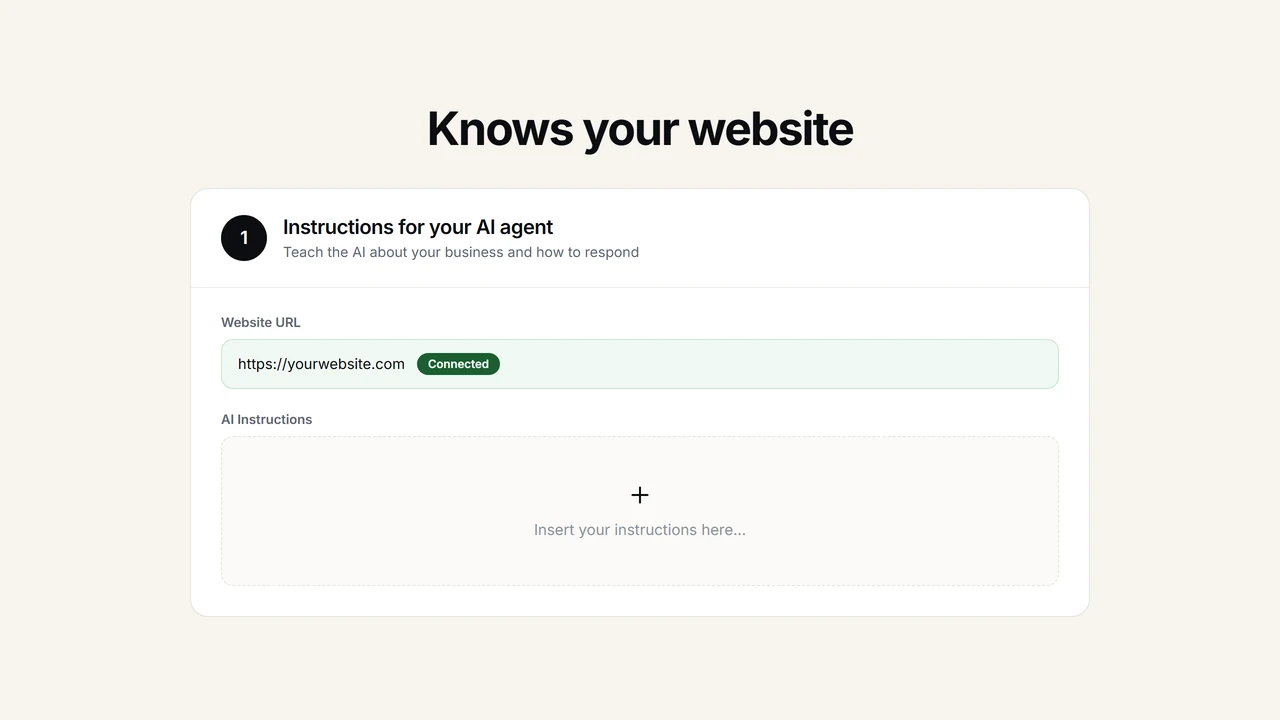
Once the WordPress chatbot plugin is connected, Asyntai crawls your site and builds a knowledge base from your actual content. Pages, posts, WooCommerce products, policy pages — the AI reads all of it. Upload PDFs for anything that isn't public.
- Crawls your pages and posts automaticallyEvery published URL becomes part of the chatbot's memory within minutes. No manual FAQ curation required.
- WooCommerce product catalog syncIf your WordPress site runs WooCommerce, the WooCommerce AI chatbot pulls products, prices, and images so it can show product cards and guide shoppers directly.
- Custom instructions in plain English"Offer a consultation when pricing is asked." "Link to the case studies page for enterprise questions." You write rules; the chatbot follows them.
Install the WordPress plugin in 2 minutes
Two minutes, no dev team. The Asyntai WordPress chatbot plugin uploads through the normal WordPress admin flow, connects to your Asyntai account in one click, and goes live immediately on every page of your site.
- Sign up for a free Asyntai account and download the
asyntai-chatbot.zipplugin from your dashboard. - In WordPress admin, go to Plugins → Add New → Upload Plugin, pick the ZIP, and click Install.
- Activate the plugin. The Asyntai settings page appears in your WordPress admin sidebar.
- Click Connect to Asyntai — a popup handles the OAuth flow and stores your site ID automatically.
→ asyntai-chatbot.zip (upload)
→ Activate
→ Connect to Asyntai (OAuth popup)
# The WordPress chatbot plugin is now live
# on every page and post of your site.
WordPress chatbot plugin — FAQs
Everything WordPress site owners usually want to know before installing.
Where do I download the WordPress chatbot plugin?
Directly from your Asyntai dashboard after signing up. The plugin is distributed through Asyntai, not the WordPress.org plugin directory, so you won't find it via the "Add New Plugin" search. Instead, download the ZIP and upload it through the standard WordPress plugin upload flow.
What WordPress versions and PHP versions does the plugin support?
The WordPress chatbot plugin requires WordPress 5.0 or higher and PHP 7.2 or higher. It's tested up to WordPress 6.9. It works alongside standard WordPress configurations, caching setups, and most multisite installations.
How does the one-click connect work?
When you click "Connect to Asyntai" in the WordPress plugin settings page, a popup opens to asyntai.com/wp-auth. You approve the connection to your existing Asyntai account, and the popup closes — your site ID is now stored in the plugin, and the chatbot is live. No API keys to copy, no credentials to manage manually.
Does the plugin work with my page builder?
Yes. The WordPress chatbot plugin injects the widget as a DOM overlay after your page has rendered, so it works with Elementor, Divi, WPBakery, Beaver Builder, Brizy, Gutenberg, and any custom page builder. It doesn't interfere with builder templates or layouts.
Is there a WooCommerce integration included?
Yes. If your WordPress site has WooCommerce active, Asyntai can sync your product catalog — products, prices, images, variants — so the chatbot answers product-specific questions and can show product cards in conversations. This is set up from your Asyntai dashboard after the plugin is connected.
Can I customize the chatbot without leaving WordPress admin?
The plugin settings page inside WordPress handles the plugin connection itself. For deeper customization — welcome messages, widget colors, custom instructions, knowledge base uploads, conversation analytics — you use the Asyntai dashboard, which is available at one click from the plugin settings.
What languages does the chatbot support?
The widget UI is available in 36 languages, and the AI detects the visitor's language from their message directly. A French visitor gets French answers, a Japanese visitor gets Japanese, without any translation plugin required on your WordPress site.
Can I use the plugin on multiple WordPress sites?
Yes on paid plans. Free: 1 site, Starter: 2, Standard: 3, Pro: up to 10. Install the WordPress chatbot plugin on each site and connect it to the same Asyntai account — each site gets its own separate chatbot.
WordPress chatbot plugin — what it is and why it matters
There's a reason WordPress users reflexively look for a plugin before looking for a JavaScript snippet. The plugin ecosystem is how WordPress has always worked — you find the tool in a familiar admin interface, upload it, activate it, and configure it in the same dashboard you use for everything else. Pasting raw JavaScript into theme files feels like a workaround rather than a proper integration, especially on sites where multiple people — founders, marketing teams, agency developers — might need to manage things over time. The Asyntai WordPress chatbot plugin exists because that preference is legitimate. It gives you the exact same AI chat capability as the JS snippet, delivered through the standard WordPress plugin flow.
Installation is deliberately ordinary. You download the asyntai-chatbot.zip file from your Asyntai dashboard, go to Plugins → Add New → Upload Plugin in your WordPress admin, pick the ZIP, and click install. WordPress extracts the plugin into wp-content/plugins/ the same way it does for any other plugin. You activate it, and a new Asyntai settings page appears in your admin sidebar. None of this requires FTP, a developer, or a plugin-editing plugin. The WordPress chatbot plugin is tested across WordPress 5.0 through 6.9, runs on PHP 7.2 and up, and doesn't conflict with the usual suspects — cache plugins, security plugins, multilingual plugins, membership plugins.
The connect step is the one moment where the WordPress chatbot plugin diverges from a typical plugin, in a good way. Most integrated plugins still ask you to copy an API key from one dashboard and paste it into another — a small step that creates room for error. Asyntai uses a one-click OAuth popup instead. You click Connect to Asyntai in the plugin settings page, a popup confirms you're logged into your Asyntai account, and the connection closes on its own. The site ID is stored in the plugin automatically. There's nothing to copy, nothing to paste, and no way to connect the wrong site by accident.
Once connected, the WordPress chatbot plugin behaves like a quiet bridge between your WordPress content and the Asyntai AI. The first thing that happens is training. Asyntai crawls your WordPress site — pages, posts, categories, policy pages — and builds a knowledge base the chatbot uses for every conversation. For sites running WooCommerce, the integration extends to your product catalog: products, prices, images, and variants get synced, so the chatbot can answer product-specific questions and display product cards directly in chat. For content-first sites, the AI simply learns from your published writing. Either way, the training is automatic and updates as you publish new content.
The second thing that happens, usually within the first week of going live, is that WordPress site owners start noticing the chatbot handling questions they used to answer themselves. The repeated pricing question from a prospect. The "do you ship to X" question on WooCommerce stores. The "what's included in your package" question on services pages. The "where's your case study for X" question on B2B sites. All of these are answerable from content that's already on your WordPress site, but visitors don't hunt for them. The WordPress chatbot plugin surfaces those answers in a conversational interface that visitors actually use.
One advantage of using an official WordPress chatbot plugin, rather than an embedded snippet, is keeping things contained. The plugin sits in your plugin list alongside everything else. If a developer or agency takes over your site, they see immediately that Asyntai is installed and where to manage it. If you decide to remove it, you deactivate the plugin, delete it, and that's the end of it — you don't have to remember which theme file the JavaScript was pasted into. For sites where ownership changes hands, where multiple people manage the admin, or where plugins are audited regularly, this matters.
Customization lives in two places, intentionally. The WordPress plugin settings page inside admin handles the connection itself and links to deeper controls. Everything else — welcome messages, widget colors and positioning, custom instructions that shape how the AI answers, uploaded documents that expand the knowledge base, conversation analytics, lead export — lives in the Asyntai dashboard, which opens from the plugin settings with a single click. This split is deliberate: the technical plumbing stays in WordPress where site admins expect it, while the rich configuration stays in a proper web application rather than getting awkwardly crammed into WordPress admin screens.
Multilingual support is a feature WordPress site owners typically worry about before installing any chat tool. With global SEO reach, a single well-ranked blog post or service page pulls visitors from multiple countries, and a chat that replies only in English leaves most of them frustrated. The Asyntai widget UI is available in 36 languages and the AI detects the visitor's language from the first message. A French visitor gets French. A Japanese visitor gets Japanese. Arabic, German, Portuguese, Spanish — all handled from the same plugin installation with zero translation-plugin setup. If you already use Polylang or WPML for translating your own content, the chatbot works independently of those and doesn't conflict.
Capturing leads is usually where a chat tool proves its return. The WordPress chatbot plugin supports smart lead capture during any conversation — the AI can ask the visitor for an email or phone number at the right moment, and every captured lead lands in your Asyntai dashboard with the full chat transcript. If you enable email notifications, the same transcript arrives in your inbox in real time. That means every visitor who had a real question but didn't fill in your contact form now becomes a lead with context — their email, the question they asked, and your AI's answer — ready for proper follow-up through whatever CRM or email sequence you already use.
Personalized answers for logged-in visitors are handled through the User Context feature, available on Standard and Pro plans. Your WordPress site can pass logged-in user data — name, membership tier, order history, recent activity — into a JavaScript object before the widget loads. The AI uses that context for personalized replies without needing any backend API integration. A WooCommerce customer asking "where's my last order" gets a specific answer because your site has pushed the data in. A membership site member asking about their current plan gets a specific answer for the same reason. Nothing is pulled from WordPress in a way that would require broad data permissions.
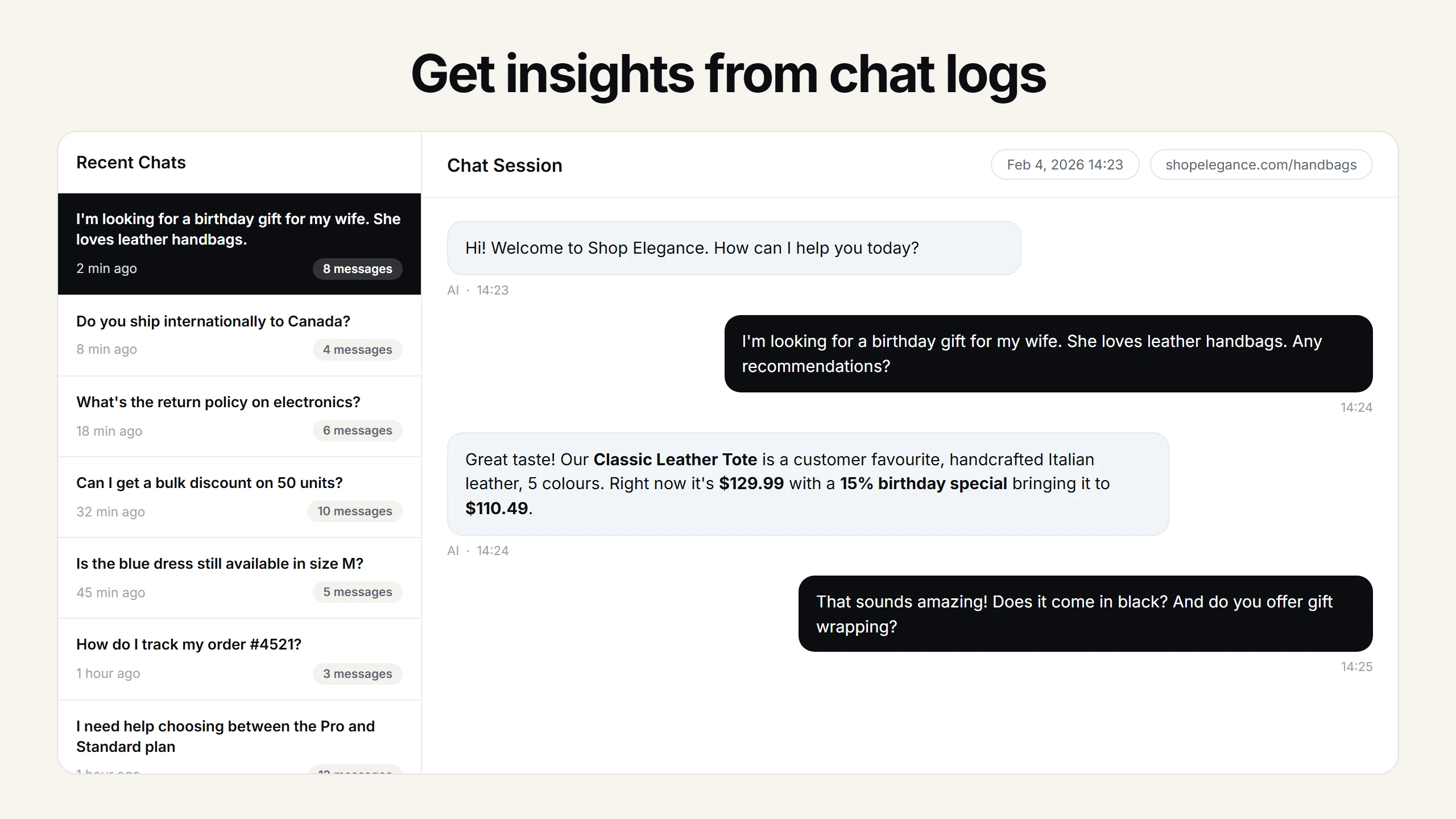
Analytics are where the WordPress chatbot plugin quietly pays back over time. Every conversation is logged, searchable, and grouped by topic in the Asyntai dashboard. After a month of traffic, patterns emerge: the three questions most commonly asked, the pages that generate the most chat traffic, the content topics where visitors hesitate. This becomes an editorial to-do list. If fifteen visitors this month asked the same question your services page doesn't answer clearly, the services page needs a rewrite. If a specific blog post generates a repeat question, that post needs a sharper conclusion or its own FAQ section. The chatbot isn't just deflecting questions; it's telling you which pages to improve so fewer questions need deflecting in the first place.
Pricing is designed to be realistic for WordPress sites of any size. The free tier includes 50 messages a month — enough to run a test on a small blog or a single-page services site. Paid plans start at $39 per month for 800 messages, which handles typical mid-sized WordPress traffic comfortably. Higher tiers scale to properties with heavy traffic or viral moments. Site limits scale with the plan too (1, 2, 3, 10), which matters for agencies managing multiple WordPress sites or founders running a portfolio of brands. Before the plugin actually pauses for exceeding usage, email warnings give you runway to upgrade — so a sudden traffic surge from a featured post or a mention in a newsletter doesn't silently kill your chat at the moment it's most needed.
The categories of WordPress sites that benefit most from the plugin are predictable but worth naming. Consultancies and agencies book more intro calls because the chatbot handles "is this right for us" objections that otherwise stall prospects on the services page. Course creators and membership sites reduce pre-enrollment friction by answering "how does this work" questions directly. WooCommerce stores close carts that would have been abandoned over shipping and sizing questions. B2B SaaS companies running their marketing on WordPress qualify trial signups faster. Local service businesses — dentists, fitness studios, law practices — capture after-hours inquiries that would otherwise go to voicemail. In every case, the WordPress chatbot plugin provides the mechanism that turns "I had a question but there was nowhere to ask" into a captured, contextualized lead.
The plugin install is genuinely fast, and for WordPress site owners who prefer the plugin flow to pasting raw JavaScript, it's the cleaner path. Upload, activate, connect, configure, go live. From there, the WordPress chatbot plugin works quietly — answering questions, capturing leads, surfacing analytics, and acting as a small 24/7 customer-facing layer your site didn't have before. For any WordPress site whose bounce rate is higher than it should be and whose contact form is the only way visitors can ask a question, adding an AI chatbot through the plugin is the single highest-leverage install you'll do this quarter.