Webflow AI assistant that guides visitors before they bounce
Asyntai is a proactive AI assistant built for Webflow designers, agencies, and brand sites — it reads your published site, greets the right visitor at the right scroll depth, and helps them find pricing, case studies, or the next booking in 36 languages. Ships as one JS snippet you drop into Webflow Custom Code.
See the Webflow AI assistant replying with your own copy
Drop your .webflow.io or custom-domain URL below and watch a preview assistant built from your actual site respond in seconds
A Webflow AI assistant that understands CMS collections, not just the marketing headline
Webflow sites are rarely a single brochure page. They're design-heavy marketing sites with a blog CMS, a careers collection, case-study pages, team member dynamic lists, and often a storefront built on Webflow Ecommerce. The Webflow AI assistant crawls every published URL in that structure — static pages and dynamic CMS templates alike — so the answers it gives reflect the site your visitors are actually looking at.
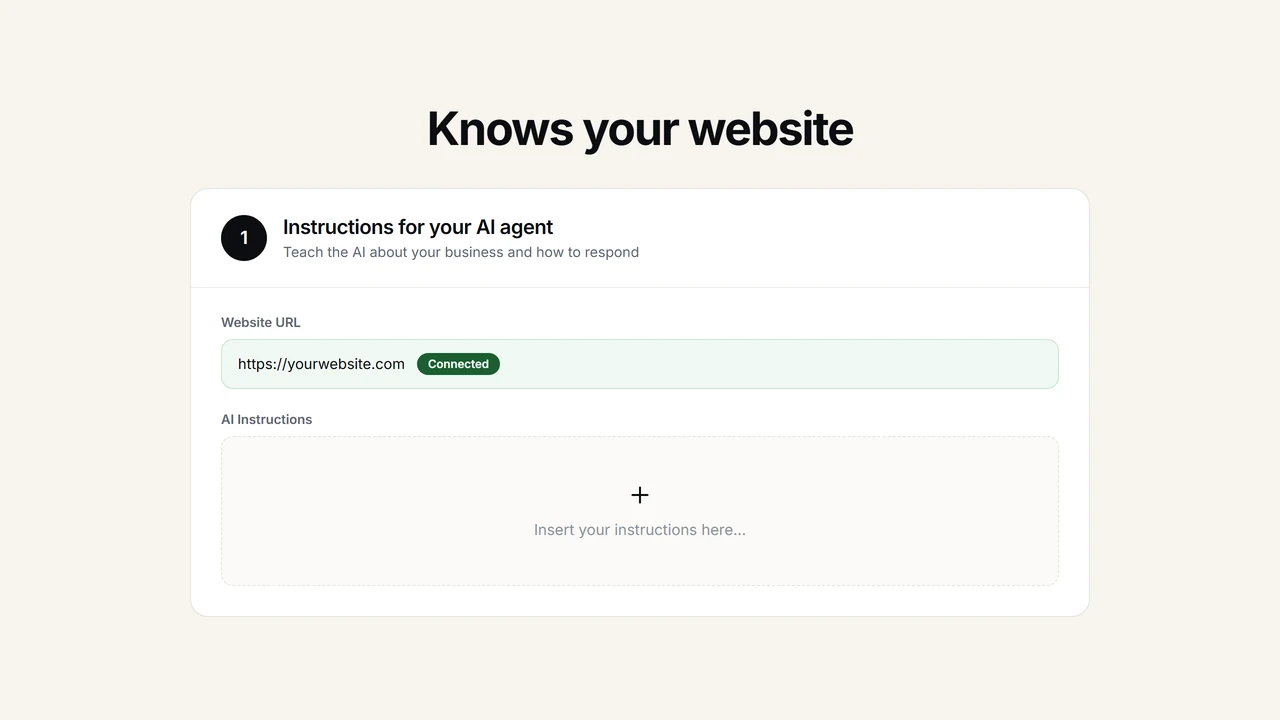
- Reads CMS-driven pagesBlog posts, case studies, team bios, job listings, project showcases — anything rendered from a Webflow CMS collection gets indexed on the same pass as your static Home and About pages.
- Add private design-system contextPaste your internal pricing ladder, discovery-call scripts, retainer tiers, brand voice guide, or service SOW templates into Asyntai privately — the assistant draws on them without exposing them on your live Webflow site.
- Behavioral rules in plain English"When someone asks about pricing, always surface the retainer tier first and offer a discovery call." "If a visitor mentions Webflow DevLink, point them to our Next.js migration case study." No flow-builder, no decision trees.
The assistant reaches out before a curious visitor quietly disappears
This is where assistant diverges from chatbot. A chatbot waits to be clicked. A Webflow AI assistant watches engagement signals — scroll depth on a pricing page, time spent on a case-study detail, a visitor who's been idle on the contact form — and opens the conversation with a context-aware prompt. For agencies and freelancers on Webflow, that behavior turns passive portfolio traffic into booked intro calls.
- Auto-trigger with timing you controlDecide how long someone should linger before the assistant surfaces, and tailor the opener by URL — a different nudge on /pricing than on /blog or a case-study slug.
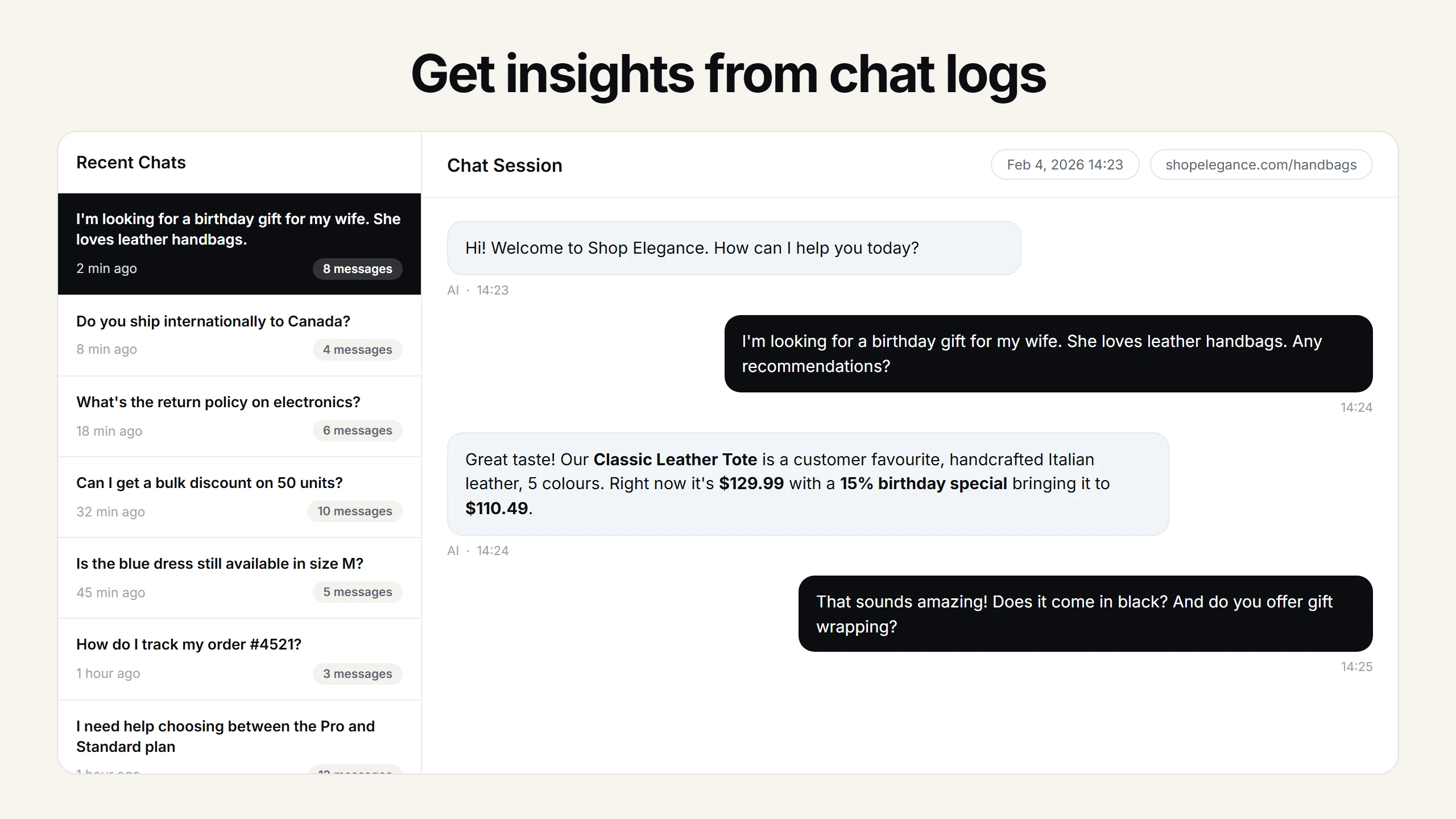
- Leads land with the full thread attachedEvery name, email, or phone captured mid-conversation drops into your Asyntai dashboard with the entire transcript — plus optional instant email pings so you can reply while the prospect is still on your Webflow site.
- Member-aware replies with User ContextStandard and Pro customers can pass signed-in Memberstack or Outseta identity through window.Asyntai.userContext, so the Webflow AI assistant greets a paid member differently than a first-time anonymous visitor.
Install through Webflow Custom Code — one paste, site-wide
Webflow ships a Custom Code panel inside Site Settings where you add third-party scripts to the head or body of every published page. That's where the Asyntai snippet lives. No App Marketplace install, no designer-panel extension, no template clone — site-wide Custom Code is included on any paid Webflow Site plan (CMS tier or above), the same plan level most design and agency sites are already on.
- Sign up for a free Asyntai workspace and grab the personal snippet generated for your Webflow site.
- In the Webflow Designer, click the gear icon for your project and open Site Settings → Custom Code.
- Paste the snippet into the Footer Code field so it loads after your page content — then hit Save Changes.
- Publish the site from the Designer (or trigger a rebuild from your staging environment). The Webflow AI assistant appears on every published URL immediately.
<script src="https://asyntai.com/widget.js"
data-id="your-site-id" async>
</script>
# Site Settings → Custom Code → Footer Code → Save → Publish.
Webflow AI assistant — the questions designers and agency owners actually ask
What people building on Webflow want clarified before they paste a script into a client's production site.
Do I need a specific Webflow Site plan to add the assistant?
Site-wide Custom Code requires a paid Webflow Site plan — the CMS tier or higher. Webflow itself gates the Custom Code panel that way, not Asyntai. If a project is still on the free Starter Site plan, you can preview the assistant on the .webflow.io staging domain but you cannot publish it to a custom domain until the plan is upgraded. Most agency and commercial Webflow sites are already on CMS or Business for other reasons (collection pages, form submissions, site search), so this rarely turns into a blocker.
Is Asyntai listed in the Webflow App Marketplace?
No. There is no Asyntai entry in the Webflow Marketplace and nothing you'd install through the Apps panel inside the Designer. Integration happens purely via a JavaScript tag in the Custom Code area — which is the path Webflow officially documents for any third-party widget that isn't a marketplace app. The upshot: no marketplace fees stacked on top of subscription, no dependency on Webflow's approval cycle for updates, and removal is as quick as deleting the four lines of code from Footer Code.
Does it work on Webflow Ecommerce stores?
Yes. When your Webflow project uses the Ecommerce feature, the assistant crawls the public storefront the same way it crawls any CMS collection — product pages, category pages, the cart and checkout flow stay untouched while the product knowledge flows into the assistant. Visitors can ask about SKUs, variants, shipping copy, or returns language, and the assistant cites your published product descriptions rather than guessing. Note that we don't write back into Webflow Ecommerce orders; the assistant's job is pre-purchase guidance and capturing contact details, not mutating store data.
What about client sites — can an agency run this across many projects?
That's a core use case. Free accounts cover one project, Starter covers two, Standard covers three, and Pro covers up to ten separately trained assistants. Agencies typically run Pro with one assistant per active client retainer, branding each to match that client's Webflow design system from the Asyntai dashboard. If you manage more than ten live sites, the answer is usually to rotate projects in and out as retainers start and end, or to reach out about a higher allowance.
Can the assistant speak my visitor's language even if the Webflow site is English-only?
Yes — the widget surface is localized across 36 languages, and the AI detects the incoming visitor's language from their first message. A visitor from São Paulo who types in Portuguese gets Portuguese back, a Tokyo visitor typing Japanese gets Japanese, and so on. The underlying Webflow site can remain a single-locale English build; you don't need to stand up a Webflow Localization project just to talk to international traffic through the assistant.
Will the script hurt how my Webflow site feels?
The tag is marked async, so the browser loads and parses it after the initial render pass — your hero interaction, scroll animations, and Lottie assets come first. Footer Code placement keeps it out of the critical path. Worth being straight about this: it is a genuine chat widget with UI, not a lightweight pixel, so a real JavaScript bundle does reach the browser. We optimize for lazy, post-render delivery rather than making claims about specific kilobyte counts or page-speed scores, because those numbers depend heavily on how a given Webflow site is built.
Do captured leads flow back into Webflow Forms or a connected CRM?
Captured leads accumulate in the Asyntai dashboard with the whole conversation stored alongside, and you can switch on email notifications so new leads arrive in your inbox the moment they're collected. There's no direct write into Webflow Forms submissions or into a connected CRM — the boundary is deliberate. A half-working sync that silently loses a lead is worse than no sync, so we keep the system of record clean and let you export or forward from there.
Does it recognize my Memberstack or Outseta logged-in visitors?
On Standard and Pro plans, yes. The window.Asyntai.userContext hook lets you push the identity payload that your membership layer already knows — name, email, plan tier, signup date, any custom attribute — so the assistant can greet a paid member by name, reference their plan, or skip questions it already has answers to. The handoff is a few lines of JavaScript inside your Webflow Custom Code, usually placed next to wherever your Memberstack or Outseta initialization runs.
Why a proactive AI assistant fits Webflow sites better than a traditional chatbot
Webflow attracts a specific type of builder. Designers who care about type hierarchy and spacing. Agencies that ship six-figure rebrands with custom interactions and Lottie hero scenes. In-house marketing teams at B2B SaaS companies who chose Webflow precisely because they wanted control over every pixel without fighting a developer queue. Brand sites for studios, fashion labels, boutique hospitality groups, and founder-led consultancies. What these projects share is a bias for design excellence — and an allergy to anything bolted on that looks like it came from a different era of the web. That cultural constraint shapes what kind of conversational layer actually belongs on a Webflow site: it cannot be a generic square speech-bubble widget with default blue styling, and it especially cannot be the kind of intrusive drive-by popup that breaks the scroll reading experience someone spent weeks refining.
The word assistant is doing real work in the name Webflow AI assistant. A chatbot, in the public imagination and honestly in much of the product category, is a reactive surface — a bubble in the corner that sits there waiting for a visitor to click it. Most visitors never do. A well-built assistant behaves differently. It watches the visitor's path through the site, reads context clues about intent, and offers help at the specific moment when help is most likely to be welcomed rather than tolerated. Someone who's been idling on a pricing page for forty seconds after scrolling past the second tier is telling you something about their decision process. An assistant that gently opens with "want me to walk through how the CMS plan's limits compare to Business for a blog-heavy build?" converts that moment. A dumb bubble in the corner does not. That's the difference this product leans into.
Installing on Webflow is genuinely pleasant compared to most platforms, because Webflow's Custom Code surface is documented, discoverable, and behaves predictably. You open Site Settings from the gear icon next to your project name, navigate to the Custom Code tab, and find two text fields labeled Head Code and Footer Code. Paste the Asyntai snippet into Footer Code rather than Head Code, because assistants belong after paint — you want the designer's hero render to happen first, then the assistant to initialize quietly underneath. Save the panel, then publish the site from the Designer top bar or from your usual staging-to-production flow. That's the entire install path. The snippet itself is a standard async script tag, so it plays nicely with whatever else is already in your Custom Code — Memberstack, Outseta, Finsweet attributes, GA4, Segment, Hotjar, a pixel or two. Order of loading is handled by async semantics rather than manual coordination.
Plan gating is worth being candid about because Webflow's pricing structure confuses people who haven't shipped on it recently. Custom Code site-wide is available on CMS, Business, and Enterprise Site plans, not on the free Starter plan. If a client's project is still on Starter, the assistant will preview fine on the .webflow.io staging URL but won't carry over when the site goes live on a custom domain until the plan is upgraded. This is a Webflow constraint, not an Asyntai constraint, and it applies equally to every third-party script anyone would want to site-wide on Webflow — pixels, chat tools, analytics, A/B testing platforms. In practice, almost every Webflow project that's serious enough to want a conversational assistant is already on CMS or Business for reasons that have nothing to do with our product: they want blog collections, team-member dynamic lists, or site search. So the plan requirement rarely surfaces as a real obstacle.
What the assistant knows about your site starts with a crawl of your published URLs. Drop your Webflow domain into the Asyntai dashboard, and the indexer walks through every reachable page — Home, About, Services, Work, Blog, individual case-study pages generated from a CMS template, individual blog posts, the careers page, pricing, FAQ, contact, privacy, terms. The index includes both human-written static pages and dynamically-generated CMS collection pages, because Webflow renders those as real HTML to crawlers rather than hiding them behind client-side rendering. That matters: a typical agency site might have fifty static URLs but three hundred CMS-rendered pages across a blog and case-study library. An assistant that only read the static pages would miss most of the substance. One that reads the CMS output reflects the actual published site.
Private knowledge rounds out what the assistant can reference. There's always material you don't publish on a client-facing Webflow site — internal pricing ladders, playbooks for how discovery calls should flow, the SOW template language you use for retainer scopes, the brand voice guide that keeps junior writers on track. You upload those PDFs or paste them as text into the Asyntai dashboard, and the assistant draws on them privately when answering visitor questions. Behavioral rules layer on top in plain English. "If a visitor asks about project timelines, always ask what their launch date is first." "If someone mentions they already have a Webflow site and want a redesign, prioritize the rebrand-and-migrate case study in your answer." "When someone says they're evaluating Webflow versus another platform, stay neutral and link them to the platform comparison post." Rules like that get followed consistently across every conversation, in every language.
For agencies running Webflow as a service, the economics of this feature are usually obvious the first time you look at an assistant's conversation log after a week. The top question category is almost never what the team predicted. It's not "what's your pricing" or "do you work with startups" — those get answered by the site itself. It's oddly specific lead-qualification questions that were invisible before: "do you build with Memberstack," "can you migrate from Squarespace without breaking SEO," "do you offer ongoing retainers or just project work," "can you work with a technical founder who already has a brand guide." Every one of those questions represents a qualified prospect who would have clicked away rather than fill out a four-field contact form with a freeform message box. The assistant turns that friction into a short dialogue, captures the email address at the natural moment, and routes the full context to wherever you work from.
Webflow Ecommerce deserves its own paragraph because it changes what the assistant is doing during a session. Commerce on Webflow tends toward direct-to-consumer brand stores — small-batch skincare, independent fashion, design objects, curated homeware — rather than sprawling marketplaces. Catalogs in that range sit comfortably inside an assistant's working knowledge, so shoppers can ask about specific product details, shipping zones, return windows, or sizing language and get answers grounded in the actual product copy on the store. The assistant doesn't touch the Webflow Ecommerce checkout flow, doesn't rewrite product pages, doesn't alter inventory — it only sits alongside the store experience and fields the questions that would otherwise cause hesitation or abandonment. That separation of responsibilities is intentional. Checkout is sacred; the assistant's job is to deliver a visitor to checkout with fewer unanswered questions.
Membership layers are common on Webflow, and the integration story there matters. Memberstack and Outseta are the two names that show up most often when Webflow projects need gated content, paid memberships, or authenticated dashboards. On Standard and Pro plans, Asyntai reads a window.Asyntai.userContext object that you populate right after your membership SDK finishes initializing the session. That object can carry name, email, plan tier, signup date, renewal date, and any custom field you already have — the assistant then personalizes its replies against that identity. A logged-in paid member asking about an upgrade gets handled differently from an anonymous visitor asking the same question, without the assistant having to re-collect information the member already provided during signup. The integration is a few lines of JavaScript alongside your existing Memberstack or Outseta boot code, dropped into the same Footer Code panel where the Asyntai snippet lives.
Design integration with the widget itself is worth calling out because Webflow designers are particularly sensitive to visual mismatches. Every surface aspect of the Webflow AI assistant configures from the Asyntai dashboard with live preview — the primary accent color to match your brand palette, widget corner radius to align with the rest of your component system, font family selection to echo the site's typography, welcome-bubble copy, avatar imagery, corner position, open/closed default state. The widget is designed to look like it belongs on a design-led site rather than imposing a generic chat aesthetic. Designers tend to iterate on the palette and radius for ten minutes, screenshot it against the live Webflow page, and lock it in — the same muscle memory they use when fine-tuning a Webflow component.
Analytics on the Asyntai side reveal patterns that a Webflow dashboard on its own won't expose. Which pages trigger the most assistant conversations. What time of day visitor questions cluster. Which topics come up repeatedly (which is a direct signal about what your site copy is silently failing to communicate). How often a conversation converts into a captured lead versus trails off. How long the average conversation runs. Which languages your international traffic actually speaks. None of this data is available inside Webflow Analytics, which tops out at traffic and form fills — the assistant layer adds a qualitative analytics dimension that's arguably more useful for iterating on the site than raw pageview counts.
Pricing is deliberately shaped around how Webflow projects grow. Free covers 50 messages a month against a single Webflow site — enough to prove the concept on a staging domain or handle a quiet portfolio. Paid plans open at $39 per month for 800 messages and two sites, which suits a solo designer running their own site plus one active client project. Mid-tier steps cover three sites with the Standard plan and support User Context for membership-aware replies; the Pro plan covers up to ten separately trained assistants, which maps well to a mid-size agency's active client roster. Before you hit a monthly cap, warning emails arrive at sensible thresholds so a sudden traffic surge from a Product Hunt feature or a newsletter mention doesn't silently cut off the assistant mid-month.
A short setup pass for a Webflow AI assistant: register a free Asyntai workspace, copy your snippet, open your Webflow project in the Designer, click the gear icon next to the project name, open Custom Code, paste the snippet into Footer Code, save. Back in Asyntai, point the crawler at your Webflow domain and wait a minute or two while the assistant reads every published URL. Upload private PDFs — pricing ladders, playbooks, brand guides. Write three or four behavioral rules in plain English. Color-match the widget to your design system. Publish the Webflow site from the Designer. Run a handful of test questions from the live URL to confirm tone and accuracy. Switch on lead notifications. From that point forward, the Webflow AI assistant quietly does the conversational work your contact form was doing badly — guiding visitors toward the information they came for, recognizing the signs of a qualified prospect, and handing you a named lead with the whole conversation attached.