A Moodle AI plugin that installs like any local plugin
The Asyntai Moodle AI plugin ships as a proper local_asyntai component. Upload the ZIP through Site administration, click Get started, and an AI assistant aware of your courses goes live across every Moodle page — no theme edits, no layout file patches.
Preview the Moodle AI plugin on your LMS
Drop your Moodle URL and see how the assistant would answer a student asking about courses, deadlines, or enrollment
A local_asyntai component, not a theme hack
University IT teams and Moodle admins have strong opinions about how things get installed. The Asyntai Moodle AI plugin respects them. It is packaged as a Moodle local plugin (local_asyntai), distributed as a ZIP you install through Site administration → Plugins → Install plugins. After activation, a proper settings entry appears under Local plugins, and the assistant injects itself on every page without a single edit to your theme's layout.php.
- Install via Site administration → PluginsDrop the ZIP into the standard Moodle plugin installer. Compatible with Moodle 3.9 and every major release since, including LTS builds that most institutions stay on.
- Get started button, not API keysOpen the Asyntai entry under Local plugins and hit Get started. A browser tab finishes the pairing between your Moodle site and your Asyntai account — no token copy-paste, no shared-secret tickets to helpdesk.
- Survives theme swaps and upgradesBecause the assistant is rendered by the plugin, switching from Boost to Adaptable to a custom theme does not break the integration. Moodle core upgrades leave it untouched.
Knows your courses, policies, and enrollment flow
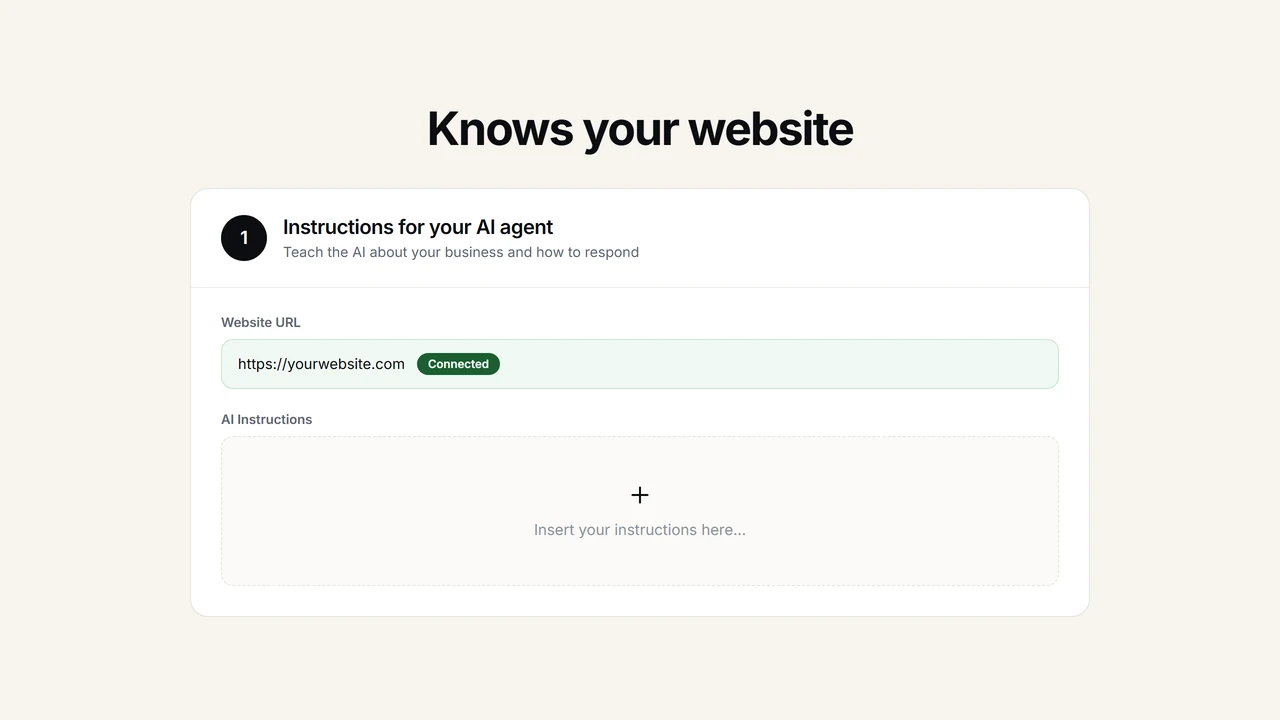
A generic AI bubble is useless on a Moodle site. Students ask about specific courses, specific assignment deadlines, specific enrollment rules. The Moodle AI plugin ingests your front-page course catalog, your knowledge base documents, and any PDFs you upload — course handbooks, academic calendars, honor codes — so answers reflect your actual institution rather than a public internet average.
- Reads your course catalog and public pagesAsyntai crawls visible course listings, category pages, and any public course descriptions so the assistant can route "which course covers X" questions accurately.
- Upload handbooks, syllabi, and policiesDrop a PDF of the student handbook, a Word doc with refund policy, or a slide deck on academic integrity into your Asyntai dashboard. The assistant treats them as source material for every answer.
- Instruction field in plain English"If a student asks about add/drop deadlines, link to the registrar page." "Always recommend the Learning Commons for writing support." You write the rules in natural language; the assistant follows them.
Install the Moodle AI plugin in a few minutes
The Moodle AI plugin install is a familiar local-plugin flow for anyone who has worked in a Moodle admin panel before. Upload the ZIP, let Moodle run its upgrade script, open the plugin settings, click Get started, and the assistant is live on every page of your site — login, dashboard, course pages, activity pages.
- Register for a free Asyntai account, then fetch the
local_asyntai.zipplugin file from your dashboard download area. - In Moodle, navigate to Site administration → Plugins → Install plugins and drop the ZIP into the installer. Moodle validates and runs the database upgrade automatically.
- Once installed, scroll to Local plugins → Asyntai under Site administration → Plugins.
- Press Get started. A pairing tab confirms your Asyntai account, stores the site identifier, and the LMS assistant starts appearing on every Moodle page.
→ local_asyntai.zip (drop into installer)
→ Run upgrade (Moodle handles tables)
→ Local plugins → Asyntai → Get started
# The Moodle AI plugin is now active
# across every course and activity page.
Moodle AI plugin — frequently asked by Moodle admins
What institutional IT, LMS coordinators, and instructional designers typically ask before approval.
Where do I get the Moodle AI plugin ZIP?
From your Asyntai dashboard once you have registered. The plugin is distributed directly by Asyntai rather than through the Moodle Plugins Directory search, so the download is inside your account. After signup, the dashboard exposes a "Download for Moodle" link that gives you the current stable build of local_asyntai.
Which Moodle versions are supported?
The plugin requires Moodle 3.9 or later. It has been exercised against the 4.x stable line and the current LTS branches that most higher-education institutions stay on. It is a local plugin component, which is the least invasive plugin type in Moodle — no block placement, no activity module registration, no gradebook touching.
Does the plugin work with our custom theme?
Yes. Because the Moodle AI plugin renders through its own injection rather than editing layout templates, it is indifferent to your theme choice. Boost, Classic, Adaptable, Moove, Lambda, plus internally developed themes — the assistant appears as a consistent overlay on top of whichever theme your site uses.
Can the assistant see logged-in student data?
Only if you pass it in. Standard and Pro plans give you a window.Asyntai.userContext slot where your Moodle site can set selected fields — the student's first name, their enrolled course codes, their cohort, whatever you decide — for each conversation. Nothing is scraped automatically from Moodle; your admins choose what the assistant knows about each user.
Is there a free version for pilots?
Yes. 50 messages per month are bundled into the free tier, enough to run a controlled pilot on a single course or a staff-only sandbox before requesting budget. The entry paid subscription starts at $39 a month with 800 messages included, and larger tiers are sized for department-wide or university-wide rollouts.
Can a single Asyntai account cover multiple Moodle sites?
Yes, up to the plan's site cap. Free tier includes one Moodle site; the Starter plan doubles it, Standard raises it to three, and Pro lifts the ceiling to ten. Each site runs a separately configured assistant, useful for institutions that operate distinct Moodle instances for undergrad, grad, continuing education, or international campuses under one administrative umbrella.
What about students who speak a language other than English?
Thirty-six languages ship with the widget UI, and the AI identifies what a student is typing on the very first turn. A student writing in Spanish receives Spanish replies, a student writing in Hindi receives Hindi, and so on, without any language pack configuration inside Moodle. This is often the decisive feature for international programs and branch campuses.
How do leads and unanswered questions reach my team?
Every chat thread shows up in the dashboard paired with its full transcript, the student's stated question, and any email captured during the chat. Enabling the optional email digest forwards the same thread to an inbox of your choice so admissions, support, or a course coordinator can follow up before the student bounces.
Moodle AI plugin — a practical walkthrough for Moodle admins
Institutions that run Moodle tend to have a very specific reflex when evaluating any new add-on. The question is rarely "is the feature good" first — it is "does this fit how we install things, and will an upgrade break it." A Moodle AI plugin that requires editing a theme's layout file, or that asks IT to sprinkle JavaScript into config.php or a boost layout, already fails that test. The Asyntai Moodle AI plugin is built with that reflex in mind: it arrives as a local plugin component, which is the category of Moodle plugin with the smallest possible blast radius. It does not register a gradebook type, it does not add an activity module, it does not touch course formats. It installs, it exposes a settings page, and it renders an assistant on top of whatever theme the institution uses.
The mechanical install takes a handful of minutes. An admin logs into Moodle, goes to Site administration → Plugins → Install plugins, drops the local_asyntai.zip file into the uploader, and lets Moodle run its validation and database-upgrade cycle. The plugin is compatible with Moodle 3.9 upwards, which covers both the older LTS releases some universities stay on for stability and the current 4.x line others have migrated to. Because it is a local plugin, the upgrade cycle is quick — a minimal schema gets created for storing the Asyntai site pairing information, and control returns to the admin. From there, Site administration → Plugins → Local plugins → Asyntai opens the plugin's settings page, where a single Get started button begins the pairing process with an Asyntai account.
Pairing is the part that typically worries IT more than the install itself. On a lot of tools, it means logging into a vendor portal, copying an API key, pasting it into Moodle, saving, praying the value was not truncated, and then emailing support when nothing works. The Moodle AI plugin avoids that sequence entirely. Clicking Get started opens a browser tab that handles authentication against the admin's Asyntai account, confirms the Moodle site identifier, and closes on its own. The pairing is stored server-side between the two systems rather than as a user-pasted secret, which removes both a support-ticket source and a small attack surface. After that single confirmation, the assistant is live across every Moodle page — login, dashboard, course listings, individual course and activity pages — with no further configuration required.
What the assistant actually does in a Moodle context is where the practical return shows up. Students arriving at a learning management system do not arrive with fully formed questions; they arrive with half-formed confusion. "Where do I submit this." "Is this course still open." "How do I reset my enrollment key." "When is the midterm." Historically, the answer to all of those has been a combination of a course page they overlooked, a help document nobody reads, and an email to the program office. The Moodle AI plugin puts a conversational layer in front of all of it. The assistant answers from the public pages of the site — course catalog, category pages, any outward-facing description — and then enriched with documents the admin uploads into the Asyntai dashboard: student handbooks, academic calendars, IT help articles, refund policies, code-of-conduct documents, and anything else that normally lives in a PDF buried on the Help page.
Instructional designers tend to be the power users of the configuration side. The Asyntai dashboard exposes a plain-English instructions field, which is where institution-specific behaviors live. A designer can write rules like "Always point students asking about accessibility to the Disability Services office page." "For questions about graduate-level courses, mention that prerequisites exist and link to the prerequisite checker." "If a question mentions grade appeals, refuse to guess and route the student to the registrar." Those rules are picked up instantly — no retraining, no custom model, no engineering ticket. The designer writes the rule today, and tonight's students see the new behavior.
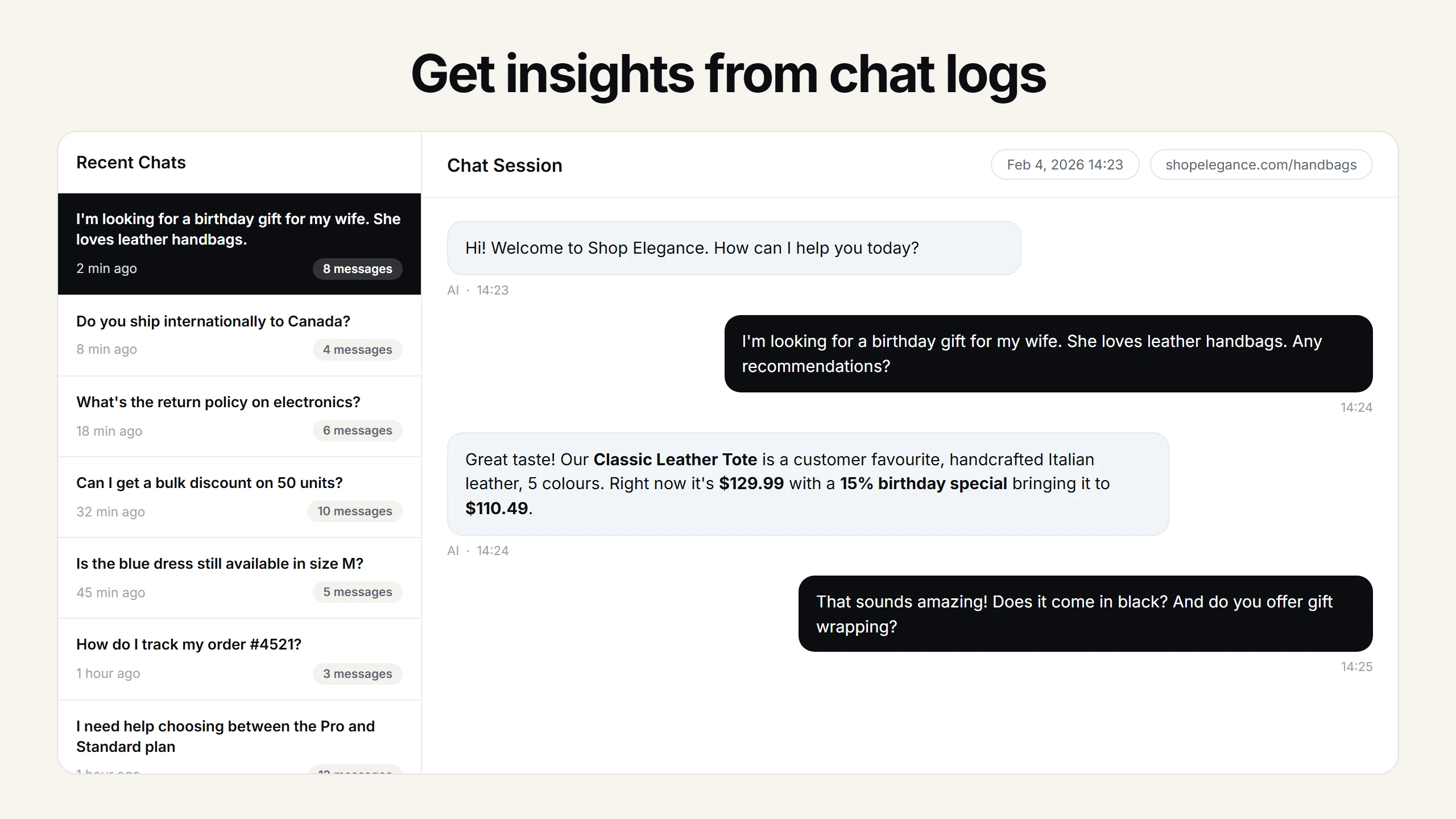
For course coordinators, the interesting part is the conversation log. Every exchange between a student and the assistant is stored in the Asyntai dashboard, searchable by keyword, date, and topic. After a couple of weeks of traffic, patterns surface: the single most-asked question of the term, the course whose page generates the most confusion, the week where pre-enrollment questions spike. That list is editorial ammunition. If three hundred students asked the same question about a hybrid attendance policy this semester, the course's description page needs a rewrite. If enrollment keys trigger a weekly flood of identical questions, the enrollment instructions page needs one paragraph added. The Moodle AI plugin answers the questions now; it also tells the coordinator which pages to fix so fewer students need to ask at all.
Passing logged-in student data into the assistant is the feature that most distinguishes a Moodle-native plugin from a generic chat widget. Standard and Pro plans ship a window.Asyntai.userContext entry point the Moodle site can populate during page render. The institution decides what goes into it — typically a first name, an enrolled course list, a program or cohort code, maybe a progress flag — and the assistant uses the context to personalize its replies. A logged-in student asking "when is my next assignment due" can receive an answer grounded in the data the institution chose to pass, without the assistant needing to call Moodle's web services directly. Institutions that do not want to share any student data simply leave the entry unset; the assistant then treats every visitor as anonymous.
Language coverage is another feature Moodle admins flag early, especially at institutions with international recruitment. A Moodle site configured with a handful of Moodle language packs is one layer; a chat assistant that still only replies in English is a separate problem. Asyntai's assistant UI renders in 36 languages, and the language of each reply is detected from the student's own message at conversation time. An Arabic-typing student receives Arabic, a Vietnamese-typing student receives Vietnamese, a French-typing student receives French, regardless of the language the Moodle interface has been set to. For programs serving mixed cohorts or branch campuses abroad, this is the feature that makes the plugin usable at all.
Security and privacy reviews usually happen before an institution is allowed to approve any outside tool, and the Moodle AI plugin is designed to pass them without surprises. The assistant runs client-side as a widget; it never reaches into the Moodle database, it never accesses the gradebook, it never pulls user profiles on its own. Anything the assistant knows about a user is data the institution chose to push through the user-context object. Uploaded training documents sit in the Asyntai dashboard under the institution's account. Conversation logs are retained for analytics; retention and export options are exposed in the dashboard. Documentation covering the data flow is available on request during a procurement review.
Pricing maps cleanly to real institutional usage. The free tier — 50 messages per month — is calibrated for a pilot on a single course, a staff sandbox, or a department-sized test before a broader rollout. The paid entry plan at $39 per month covers 800 messages, comfortable for a small faculty or a continuing-education program. Higher tiers scale to department-wide and university-wide rollouts, with the multi-site allowance (one, two, three, and up to ten) covering institutions that run separate Moodle instances for undergraduate, graduate, continuing-education, or international divisions. Billing lives in a single Asyntai account, which often matches the institutional procurement model better than per-instance licensing.
Adoption in higher education is a category that genuinely pays. A meaningful share of Asyntai's paying customers are education organizations running Moodle, and the reasons they cite are consistent across institutions: the helpdesk queue during add/drop week, the repetitive tier-one questions that academic advisors spend their mornings answering, the language-coverage gap for international students, the flood of "how do I" questions any new LMS rollout generates for the first semester. The Moodle AI plugin slots into each of those without asking any existing staff member to change their workflow. Advisors keep doing advising, but without the twenty daily emails asking where the course catalog is. IT keeps doing IT, but without the password-reset and enrollment-key tickets that a well-set-up assistant deflects. Instructors keep teaching, but without having to answer the same syllabus questions in every course's discussion forum.
Removal, which is always worth thinking about up front, is equally boring. Uninstalling the Moodle AI plugin is the standard Moodle local-plugin uninstall: visit Site administration → Plugins → Plugins overview, find Asyntai under Local plugins, and choose Uninstall. Moodle removes the plugin's database tables and files, the assistant stops appearing, and that is the end of it. Your Asyntai dashboard still contains the conversation history and any training documents uploaded — you can export or delete them from the dashboard directly, and the Asyntai account itself can be closed with a single request if the institution has fully decided to move on.
For any Moodle instance where the student support queue is already strained, or where international enrollment is growing faster than staffing, or where tier-one helpdesk volume dominates the workday, the AI chatbot for Moodle is a disproportionately small install for a disproportionately large operational change. The plugin goes in through the normal Moodle flow, the pairing takes one click, the training takes a few uploads, and by the end of the same afternoon the LMS has a 24-hour multilingual assistant that knows the institution's own documentation. It does not require Moodle plugin development, it does not require engineering hours, and it does not require committing to a new vendor ecosystem — just a local plugin, a pairing click, and a dashboard login.